

How to Use a Google Sheets Rank Tracker
Want an affordable alternative to a Google Sheets rank tracker? Try ProRankTracker for FREE today.
Many times, when people are looking for a rank tracker, they look primarily at the highly advanced features it offers:
- Reporting
- Location tracking
- Keyword discovery tools
However, many people forget to consider how well a tool integrates with the OTHER tools they already use.
For example, how well can your new rank tracker incorporate a system like Google Sheets into your strategy?
This article will discuss why Google Sheets can be an important tool in rank tracking and how to use ProRankTracker as an advanced Google Sheets rank tracker.
We’ll cover:
- Why You Shouldn’t Manually Track Keywords with Google Sheets
- What Can You Use Google Sheets for on ProRankTracker?
- How to Combine ProRankTracker with Google Sheets
- Why Exporting to Google Sheets Can Be Helpful
- How to Use ProRankTracker to Automatically Track Your Ranks
Why You Shouldn’t Manually Track Keywords with Google Sheets
Google Sheets is a very powerful tool–especially considering it’s free to use.
If you choose to use Google Sheets as your primary rank tracker, I highly recommend using a template to help you stay organized and keep things moving as quickly as possible. We’ve made a free template just for that purpose–click here to use it.
Here’s a video that shows you how it works (video will open in a new tab):
However, while Google Sheets is a great tool, there are better tools for the job for tracking ranks.
Why?
Manually finding data every day and entering that data into Google Sheets is:
- Slow
- Inefficient
- Inaccurate (you can only find data from one location)
Let’s see how you SHOULD use Google Sheets as part of your rank-tracking strategy.
What Can You Use Google Sheets for on ProRankTracker?
When it comes to ProRankTracker, how does it integrate with Google Sheets?
Fortunately, ProRankTracker uses Google Sheets integration in several ways. That means it allows for maximum flexibility.
Let’s look at 2 specific use cases where you can combine the power of ProRankTracker with Google Sheets rank tracking capabilities to get the best of both worlds.
Export Rank Reports
The first use of Google Sheets is the ability to export your ProRankTracker rank reports to analyze them.
For example, let’s say you want to keep track of your previous rank reports by keeping a running Google Sheet. This might help you stay organized and increase your historical knowledge of your ranks.
Using ProRankTracker, all you have to do is export your Rank Reports directly to Google Sheets!
Bulk Imports
If you’ve been tracking your data in GS for a while, it may seem impossible to begin moving it into a rank-tracking tool.
Fortunately, PRT makes this process extremely easy with bulk keyword imports.
Bulk keyword imports allow you to quickly move ALL your keywords to PRT in just a few minutes (we’ll discuss this process in depth later in this article).
Then, PRT will automatically start compiling all the ranking data you’ve been missing out on for those keywords!
Downloading Rankings Views
If you’re a GS sheets wizard, you can do pretty impressive data manipulation in the program.
We already discussed this when we talked about exporting your ranking reports, but you can do the same thing with your Rankings Views.
Downloading your Rankings Views in a format that’s easily manipulated in Google Sheets gives you supreme control over your data (especially if you’re already familiar with working with your data in Google Sheets).
Insta-Check Reports
Insta-Check reports are a quick way to do a SERP check for a keyword you’re not currently tracking without needing to add it to your long-term tracking list.
There are tons of reasons you’d want to do this, but one of the main ones is that it allows you to do keyword or competitor scouting and get quick answers without running up the cost of your subscription plan.
You can also use Google Sheets to help you generate Insta-Check reports. This can save you a ton of time because it allows you to use the data you’ve ALREADY compiled in GS, move it to PRT, and generate a SERP check report in just a few minutes.
Full SERPs
Another critical use of ProRankTracker’s integration with Google Sheets is downloading Full SERPs to view on Google Sheets.
There are several reasons you might want to do this:
- Keeping a record of how the SERP for a particular keyword changes
- You like the layout of Google Sheets and the manipulability of the data
Full SERPs are a critical part of tracking your ranks, so the ability to view them in Google Sheets can benefit many users.
How to Use ProRankTracker to Export Ranks to Google Sheets
Now that we’ve gone over some of the primary uses for ProRankTracker’s integration with Google Sheets, let’s look at how to accomplish them in ProRankTracker.
In other words, how do you get data from ProRankTracker into Google Sheets and vice-versa?
After that, we’ll discuss how to import data from Google Sheets into ProRankTracker.
Step #1: Add Google Sheets Integration
Before you can do anything with Google Sheets, you need to integrate your Google Sheets account with your ProRankTracker account.
Fortunately, it’s a very straightforward process.
1) Click the gear icon that says “Settings” in the left-hand toolbar.
2) Click “Integrations.”
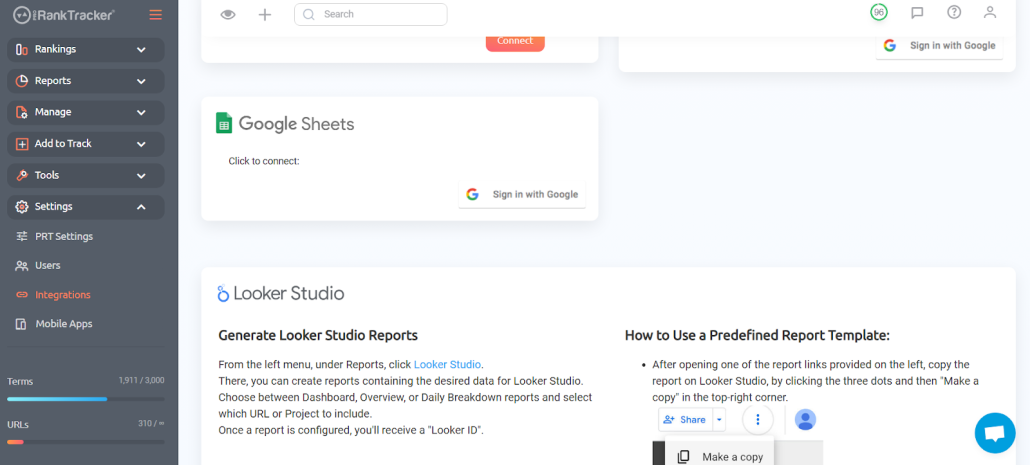
3) Click on the Google Sheets integration.
4) Select or login to your Google account
5) Accept the permissions that ProRankTracker requests.
That’s it!
You’re ready to start exporting ranks from ProRankTracker into Google Sheets!
Step #2: Import Keywords into ProRankTracker
If you’re tracking your keyword rankings on GS, you can use the bulk import file to instantly import all those keywords into PRT without having to input all that data manually.
1) Go to the Bulk Add tool.
2) Download the bulk import file.
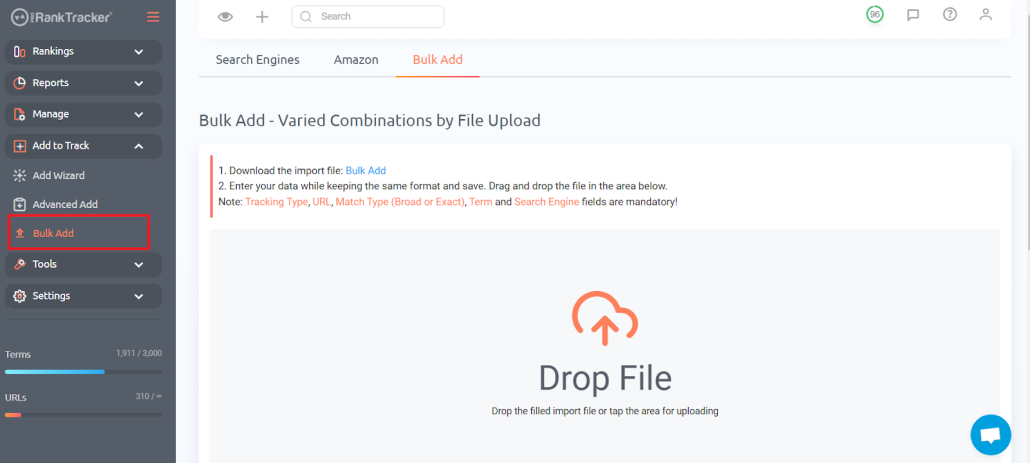
3) Copy/paste your data from GS into the bulk import file (make sure to adjust the data to include the appropriate fields).
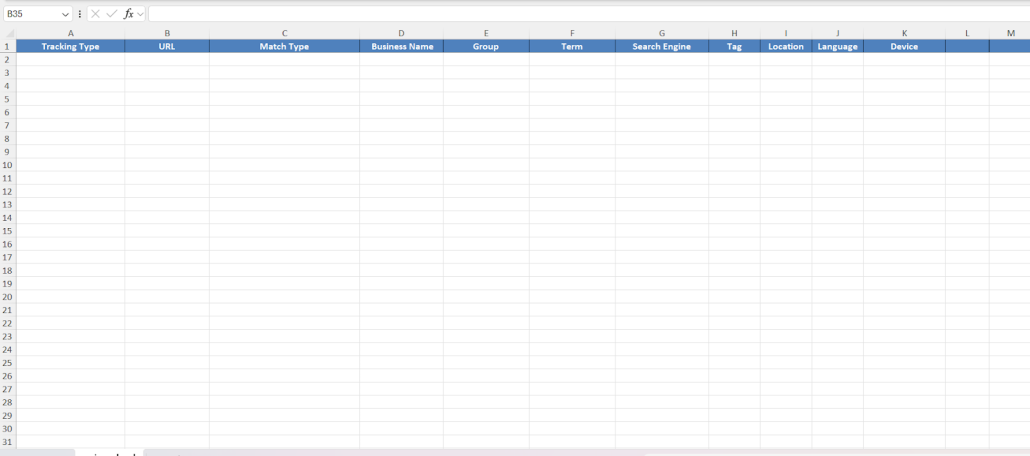
4) Import all your keywords at once!
It’s vital to note that when you download the bulk import file, you MUST make sure each data field is filled out if you want to track that type of data.
For example, fill in the location section if you want local ranking data for that keyword or the search engine section if you want to track multiple search engines.
Using the bulk import feature saves TONS of time, and it’s the first step to switching from GS to PRT as your main rank tracker (discussed more below).
Step #3: Export Reports to Google Sheets
The next step is to select the report that contains the data you want to look at in Google Sheets.
ProRankTracker has over 20 types of reports, so navigate to the one you want and select it.
When you select a report, you need to first generate the desired report before being able to export it. To create a report, click “Add New Report” and complete the required info.
In the “Export to” dropdown menu, select “Google Sheets.”
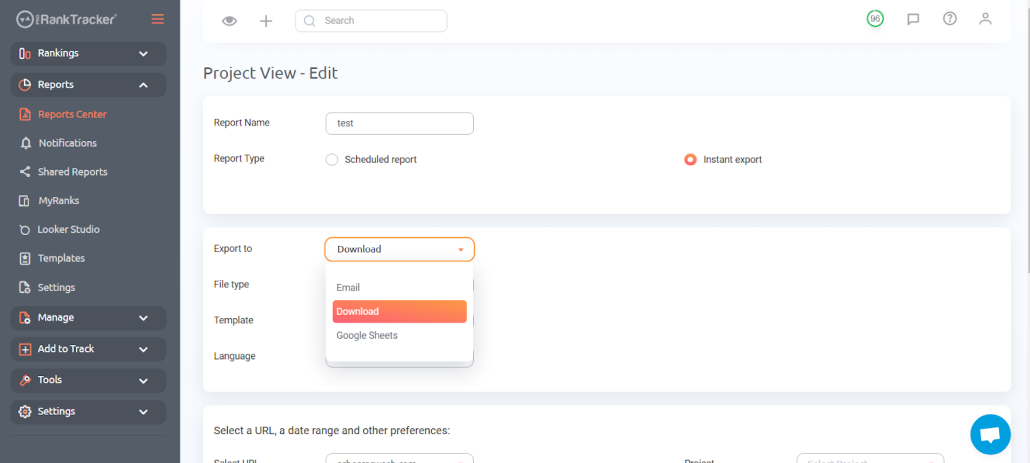
When you create this report, it will automatically appear in your Google Sheets profile as a new spreadsheet with the name you selected!
Please note that you won’t see Google Sheets as an option here if you haven’t already added it as an integration, as we did in the last step.
Step #4: Export a Rankings View to Google Sheets
When you select one of ProRankTracker’s 5 Rankings Views, you’ll see a download button in the top right corner. Click it!
You will see multiple download options, including 3 types of export options:
- Download
- Cloud
To export directly to Google Sheets, select “Cloud.” Then, use the “Save to” dropdown menu to select “G-Sheets.”
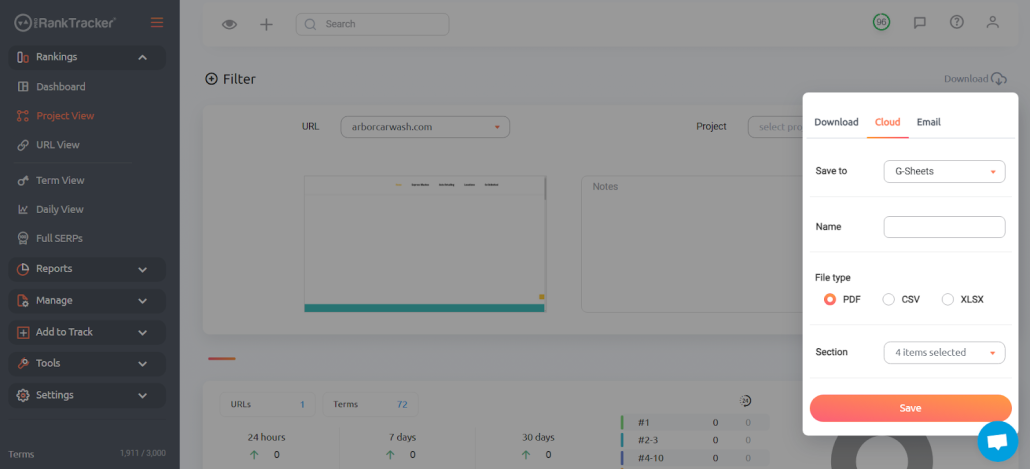
When you’ve done that, click “Save,” and ProRankTracker will send the new spreadsheet to Google Sheets.
Step #5: Generate Insta-Check Reports
We talked about why Insta-Check reports are so helpful. Now, let’s talk about how to generate one.
1) Go to the Insta-Check tool and select “Google – Web demo file.”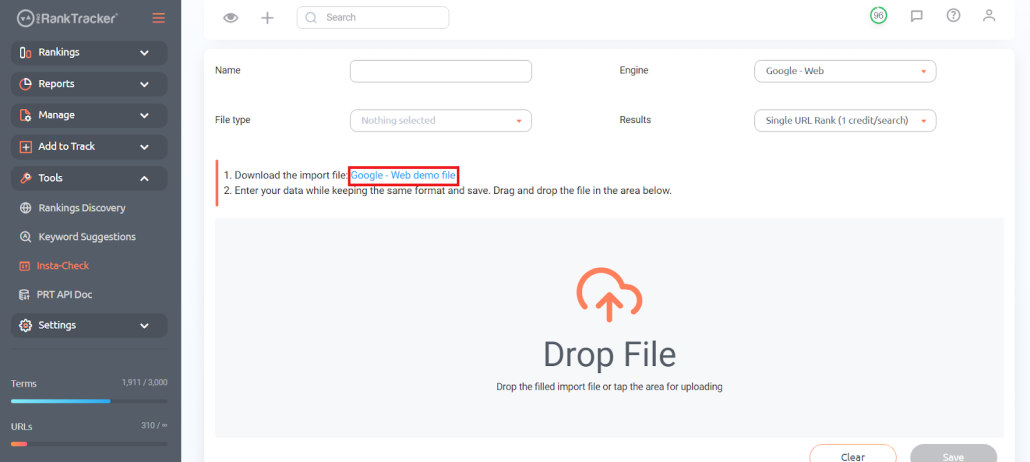
2) Download the Insta-Check file and fill it with your Google Sheets data in the appropriate fields.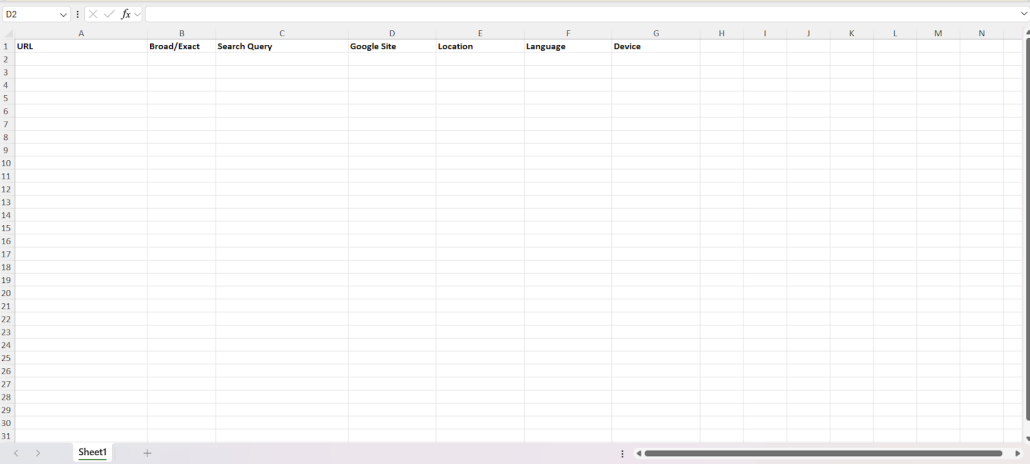
3) Generate your reports.
This process allows you to quickly generate instant SERP checks using the data you ALREADY have compiled in
your GS account. Moving the data into the correctly formatted Insta-Check file only takes a few minutes.
Why Exporting to Google Sheets Can Be Important
When your specialized rank-tracking tool gathers your rank data, you can then export it into Google Sheets to help you do more with that data.
For example, let’s say you want to plot a graph comparing your overall ranking progress with 3 competitors over 6 months.
Exporting data into Google Sheets can help you make these custom graphs.
There are several other reasons why you might want to integrate with Google Sheets:
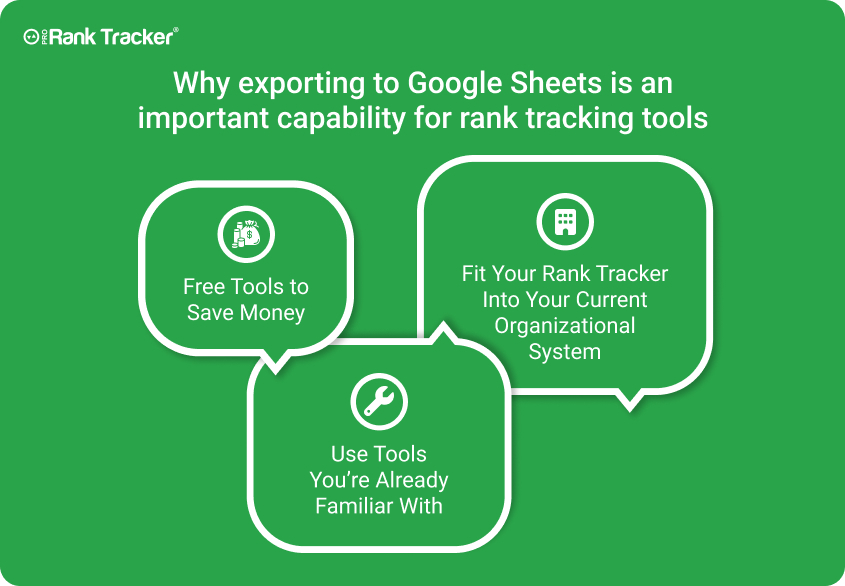
1) If you currently use Google Sheets to manage keywords/ranks, integrating Sheets with a rank tracker could help fit everything into a single system.
2) Similarly, you might already be familiar with Google Sheets, and an integration with a rank tracker could help you take advantage of that familiarity.
3) Google Sheets is free, so it could help you save money if you can use it instead of other tools that cost money to use.
Even though Google Sheets is a powerful tool, we highly recommend using an automated rank tracker like PRT to track your ranks and accomplish other specialized rank-tracking tasks, which we’ll discuss next.
How to Use ProRankTracker to Automatically Track Your Ranks
Want a better alternative to tracking your ranks with Google Sheets?
ProRankTracker is designed to integrate seamlessly with Google Sheets, but ditching Google Sheets and tracking your ranks exclusively with ProRankTracker can speed up your tracking, improve your accuracy, and give you access to expanded tools.
Watch this quick video to see what I mean (the video opens in a new tab).
Let’s talk about how to use ProRankTracker to track your ranks automatically.
Establish Projects
The project is the highest level of organization in PRT, which allows you to put keywords, URLs, groups, and tags in a single organizational structure.
Projects are beneficial when you want to keep your entire rank-tracking system organized. They can be used for multiple different purposes:
- Put each competitor into their own project
- Separate websites into different projects (if you’re managing various sites)
- Separate your keyword campaigns into separate projects to manage each of them easily
To create projects, go to the Projects menu on the left-hand toolbar (under “Manage”) and select “Add New Project.”
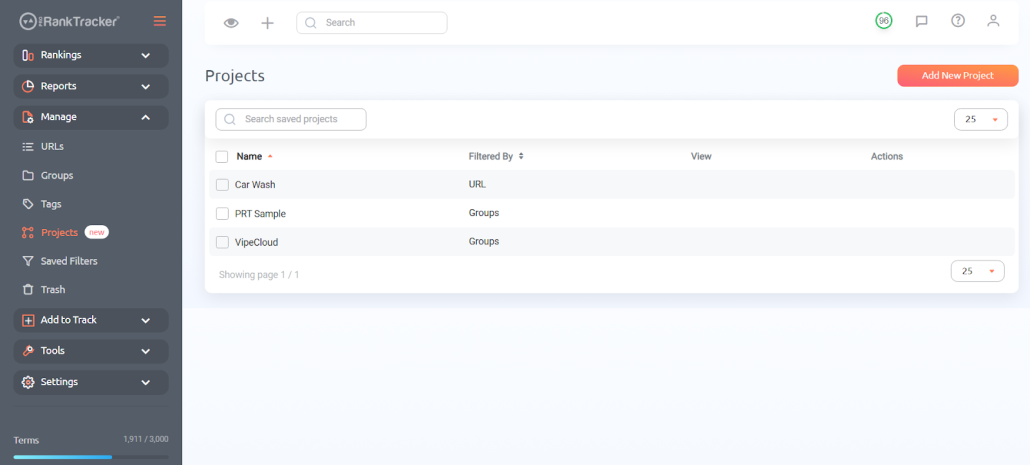
Then, pick the tags, groups, URLs, and keywords you want to include in that project, along with any other details to filter your Project to your desired parameters.
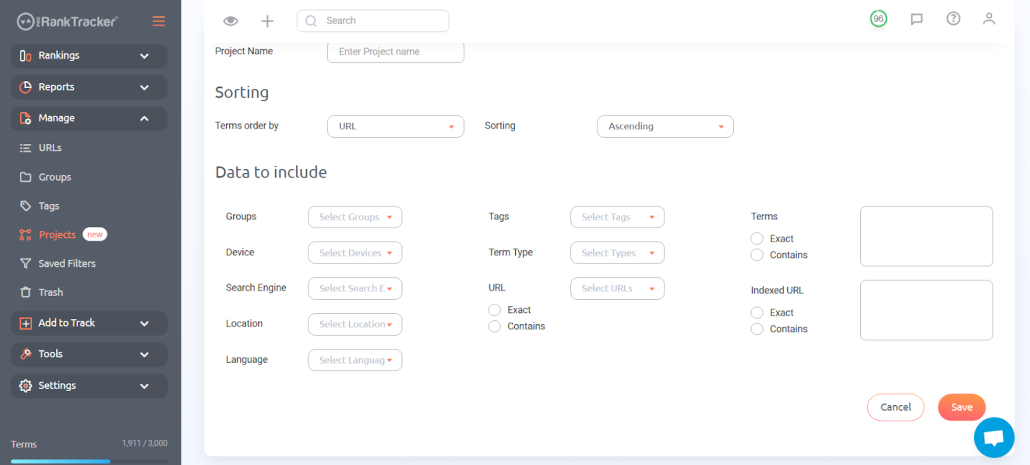
That’s all there is to it! Establishing your projects will automatically populate the Projects View (discussed in the next section).
Rankings Views
Now that your projects are set up, you can take full advantage of the Rankings Views, which form the core of the data management section of PRT.
There are 6 Rankings Views. Each is designed to give you a slightly different view of your SEO ranking strategy to help you fully understand your data.
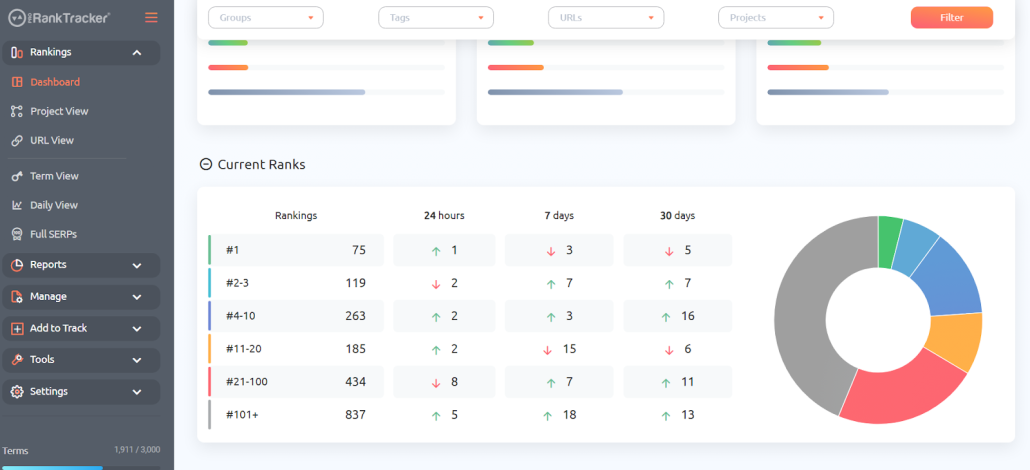
- Dashboard View gives you a broad overview of ALL your ranks. This is the 50,000-foot view, so it’s just to give you an idea of how your ranks change from day to day or week to week.
- Term View shows you data for all your tracked keywords, along with the URLs that are associated with each keyword.
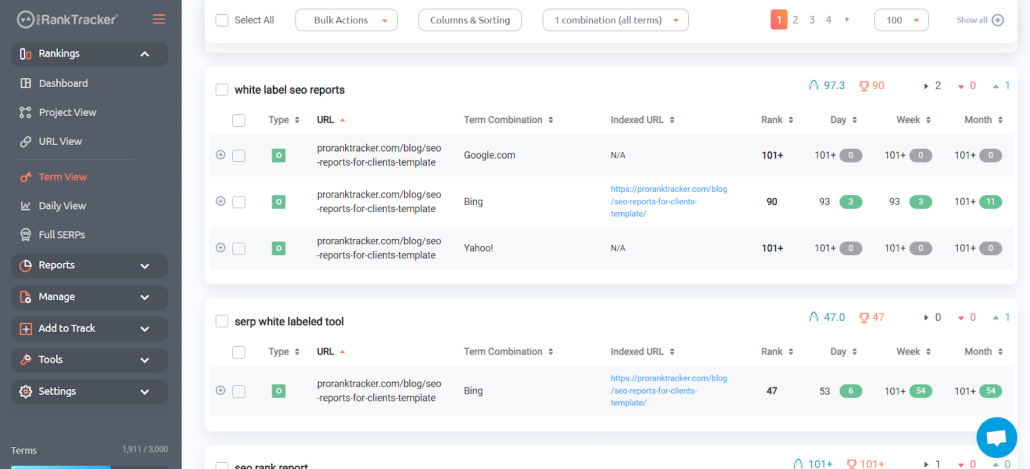
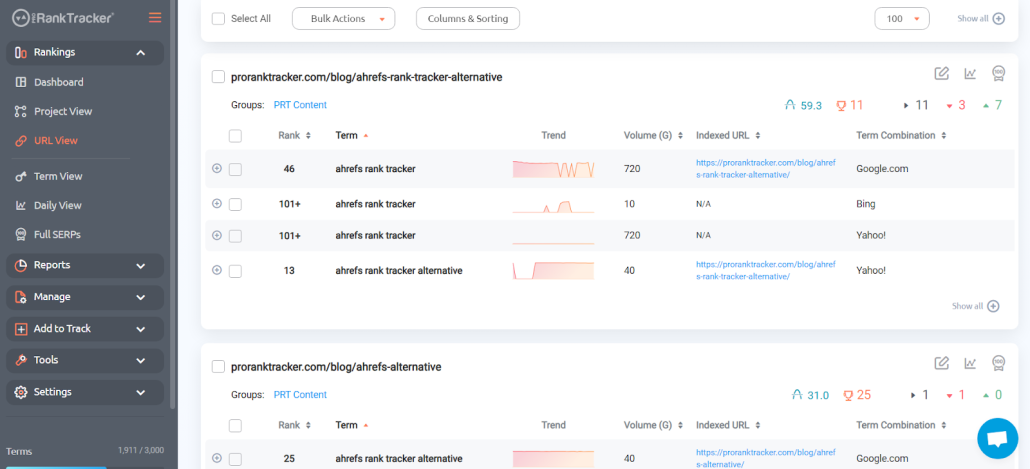
- URL View is the exact opposite of Term View. It shows you all your URLs and the tracked keywords associated with each URL. USE BOTH Term View and URL View to get a complete picture.
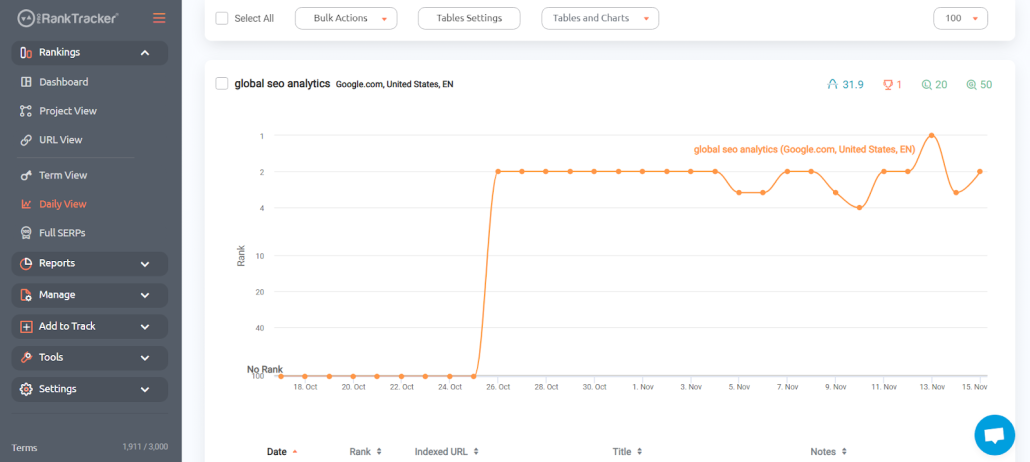
- Daily View gives a daily breakdown of how your ranks have changed in graphical format. This view helps users see precisely how their ranks are changing over time, allowing them to correlate strategic moves with the results on the SERP.
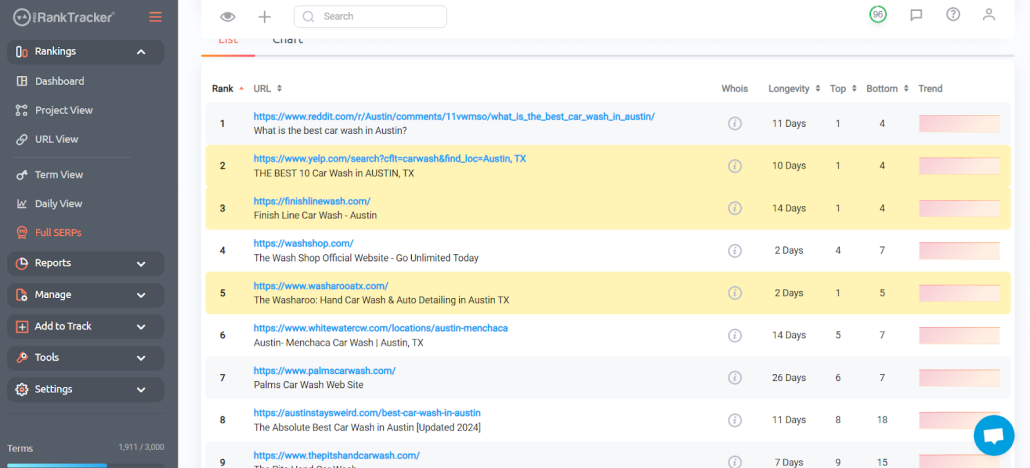
- Full SERPs display an interactive SERP for the URL/keyword/location combination of your choice, helping you check out competitors and visualize SERP movement on a broad scale.
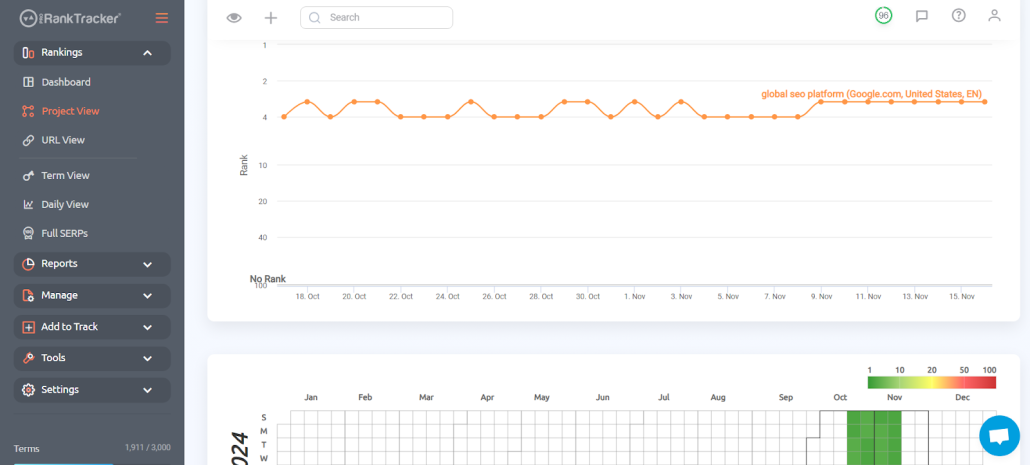
- Projects View gives you essential information about the success of each of your projects, and it compiles many aspects of the other Rankings Views into a single page to help you get a more comprehensive understanding of your projects. It also includes a rankings heatmap to give you another visual to see how you rank over time.
Automated Reports and Notifications
As mentioned, PRT offers more than 20 types of premade reports that are white-label friendly and automatable.
To generate a report, just go to the Reports Center, select the desired report, and fill out the information to your specifications. You can choose to instantly export the report or establish a recurring report.
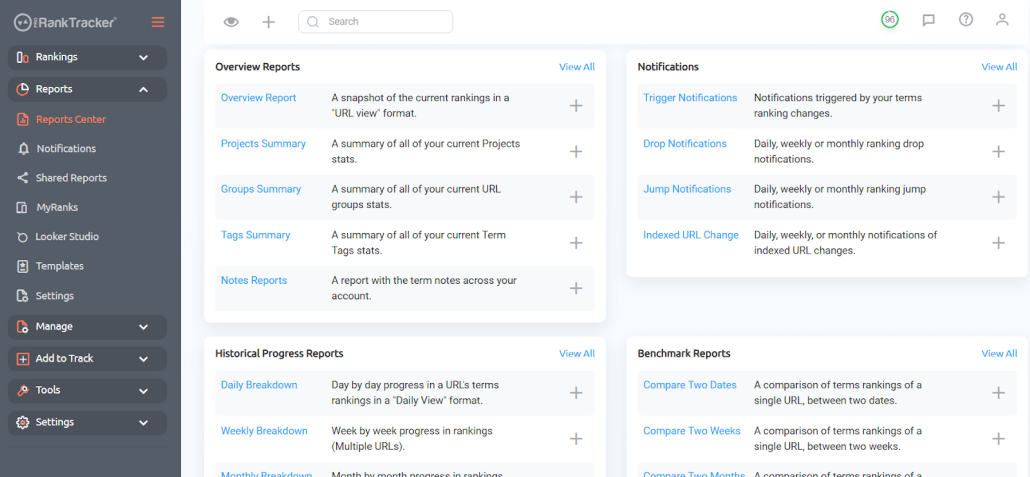
That means you can get ANY aspect of your ranking data emailed to your inbox (or your clients’ inboxes) without lifting a finger.
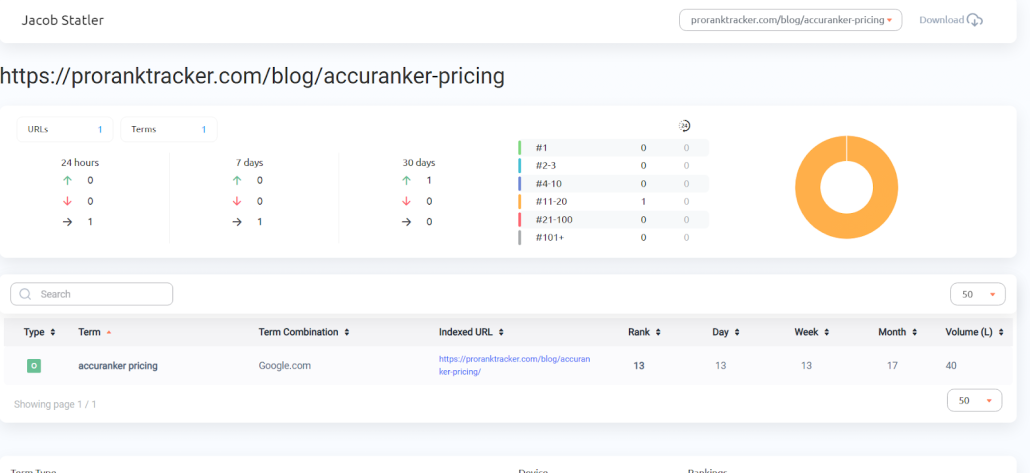
Additionally, establishing a thorough, automated reporting strategy helps you break away from manual tools like GS. It allows you to get the essential information delivered and enables you to AVOID manual data entry.
Of course, as mentioned above, you can incorporate GS into your reporting strategy by exporting any report to GS, but this isn’t necessary.
Conclusion
Your rank-tracking tool is only powerful if it works well in your system. That’s why integration with tools like Google Sheets can be so important!
By following the steps in this article, you can boost your productivity and save time by integrating Google Sheets with the already powerful ProRankTracker platform.
If you aren’t already signed up for ProRankTracker, sign up for a 30-day free trial to see how much it can benefit your business!
Good luck!