
Bulk Keyword Rank Checker: How to Track Ranks in Bulk
Looking for a bulk keyword rank tracker? Sign up for ProRankTracker for free.
Interested in learning more? Keep reading…
Tracking ranks can seem like a pretty dull task after a while. After all, you may end up repeating the same tasks over and over again:
- Identify a keyword
- Determine the location, search engine, and URL for the tracked keyword
- Add the keyword to your keyword rank tracker
What if there was a way to speed this process up and reduce the repetition?
Well, today is your lucky day! Many rank-tracking tools allow you to add keywords in bulk.
Tracking your ranks in bulk provides some distinct benefits over tracking them individually:
- It saves time
- It helps accelerate the transition from other tools
- It makes it easy and quick to launch a keyword campaign with multiple new keywords at once.
This article will discuss how to use ProRankTracker as a bulk keyword rank checker to get all the benefits mentioned above (and more!).
Let’s dive in!
We’ll cover:
- How to Use ProRankTracker as a Bulk Keyword Rank Checker
- Important Details to Include When Adding Keywords in Bulk
- FAQ
How to Use ProRankTracker as a Bulk Keyword Rank Checker
Now that we’ve gone over the basics of why using bulk keyword rank trackers is so advantageous, let’s get down to HOW to use ProRankTracker.
This section will be a step-by-step guide on how to upload new keywords to ProRankTracker in bulk. However, it won’t make sense if you don’t use ProRankTracker.
Don’t worry–we don’t expect you to go out and buy a month’s subscription to follow along here. But we highly recommend you sign up for a 14-day free trial so you can follow along and see how much time bulk rank tracking can save you.
Download the Bulk Add File
The first step is to download the bulk add file, which contains the formatting you’ll need to upload new keywords into ProRankTracker efficiently. Go to the “Bulk Add” tab on the left-side toolbar to download this file.
In the bulk add page, you’ll see blue text that also says “Bulk Add.” Click on that text, and a download will automatically begin.

The file you download is an XLSX file with the appropriate formatting, so you should only have to edit it to add your new keywords and other details.
Fill Out the File (With ALL Important Details)
Now it’s time to start putting in all the details you want to track.
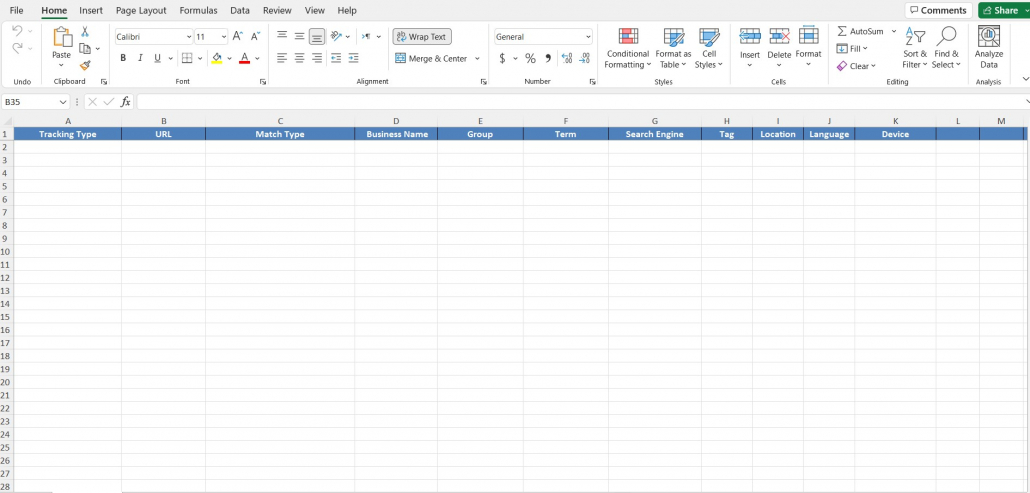
Here’s a breakdown of what each field is:
- Tracking type (required) is organic, organic local, mobile, Snack Pack, etc. There is a drop-down menu from which to select.
- URL (required) is simply a copy/paste field for the URL you want to track.
- Match type(required) is either broad or exact. Broad means any URL that includes the “parent URL” you enter. Exact means that the result must include the exact URL you’re tracking.
- Business name is required for Snack Pack and Local Finder results. It should be the EXACT name of your business on your Google Business Profile.
- Group/Tag are organizational features within ProRankTracker that allow you to gather URLs or keywords together for easy access later.
- Term (required) is the keyword itself.
- Search engine (required) is the search engine (or engines) where you’ll be tracking this term.
- Location/Language/Device are fields that help narrow the SERP down to the most helpful version for you.
After selecting Tracking Type, each field on the row will be color-coded.
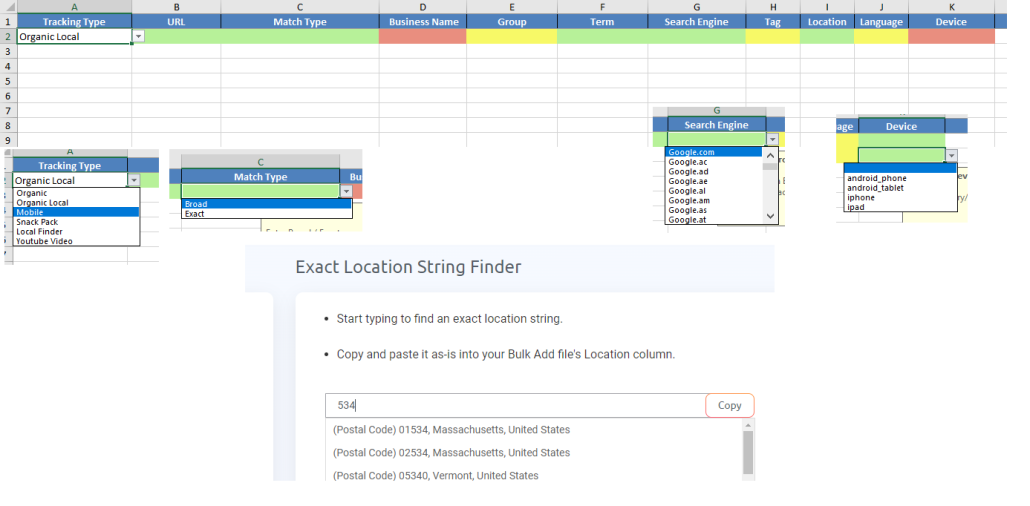
- Green fields are mandatory.
- Yellow fields are optional.
- Red fields are NOT to be filled.
Be sure to fill each row from the left to the right because each setting is conditioned based on the setting to the left.
Also, be sure to fill out an EXACT location with “Exact Location string finder” so local rankings are as accurate as possible.
Upload the File in the Bulk Add Tab
Now it’s time to get those new ranks into ProRankTracker! Fortunately, this step is super easy.
Save the EDITED file to your computer, then go back to the Bulk Add page on ProRankTracker.
You’ll see a big space where you can drag and drop the file. Alternatively, you can locate the file on your computer and upload it.
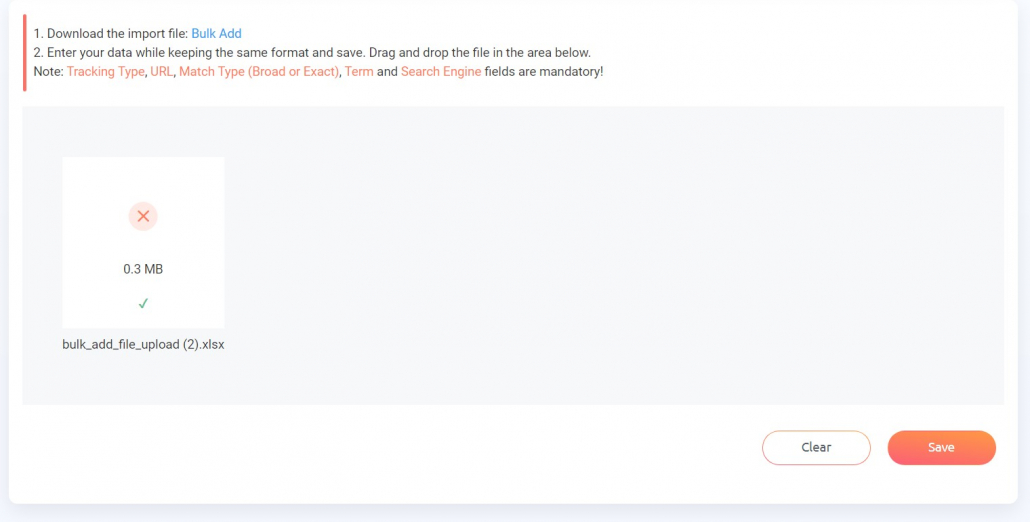
Once you’ve uploaded the file, click “Save” in the bottom right corner.
That’s it! ProRankTracker will automatically gather data on all the new ranks you just uploaded.
Insta-Check in Bulk
Insta-Check is ProRankTracker’s instant SERP checker, which makes it easy to take a quick look at any URL’s position for a keyword on the SERPs WITHOUT adding them to your long-term tracking list.
Fortunately, ProRankTracker also allows you to use Insta-Check in bulk. Here’s how:
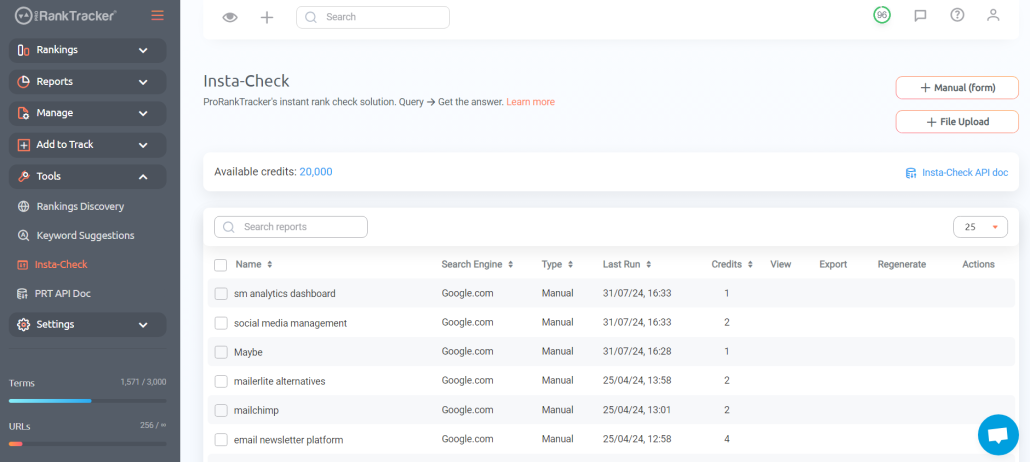
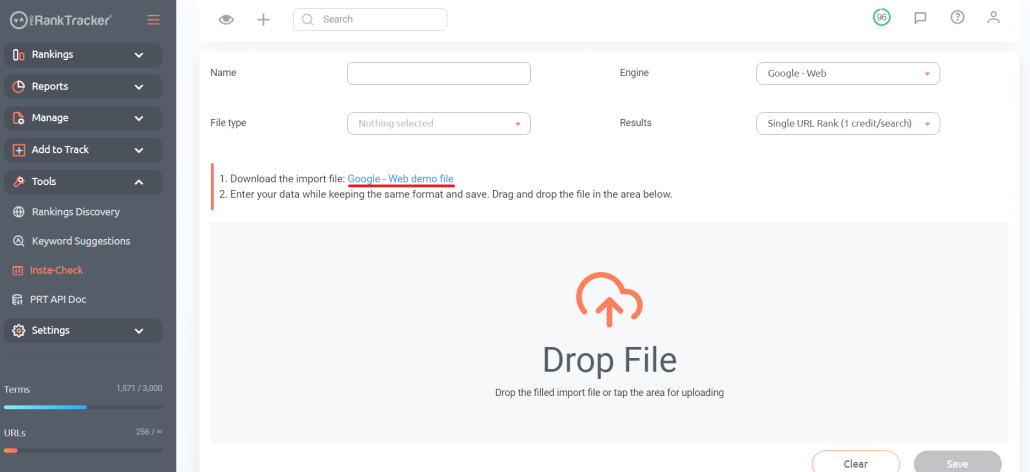
Go to the right-hand toolbar and click “Insta-Check,” then click “File Upload” in the top right corner.
You will see a page like the one below. Click on the blue link that says “Google – Web demo file.” Your computer will start downloading the bulk Insta-Check file.
Open the new file if your computer doesn’t open it automatically. You will see an Excel file that looks like the one below. You will fill this out exactly as you filled out the Bulk Add file above (except there are no dropdown menus).
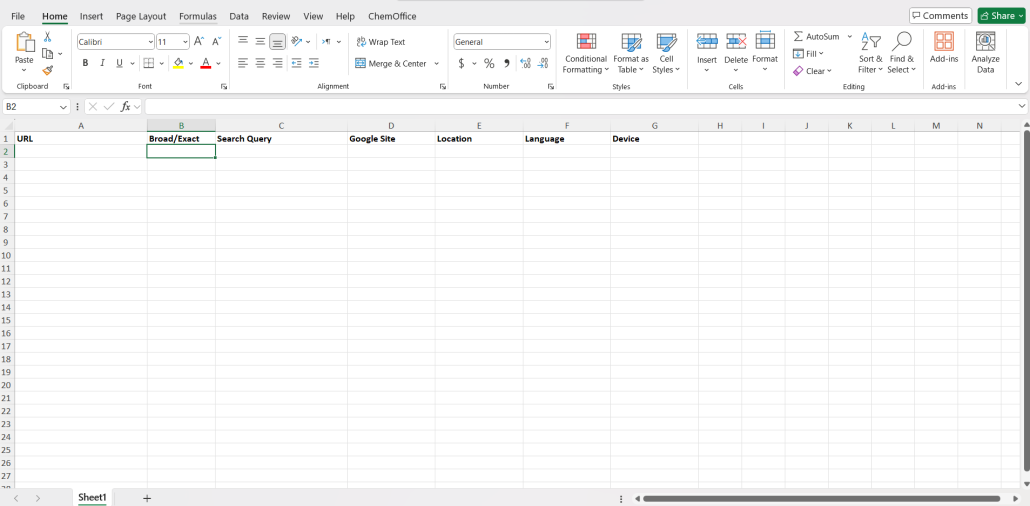
Here’s a breakdown of each field:
- URL is where you will put each URL that you’re interested in.
- In Broad/Exact, just type either “Broad” or “Exact.” Broad will track the parent URL and any URL that includes that URL (example.com as well as example.com/blog). Exact tracks only the exact URL as typed.
- Search Query is where you will input the search term/keyword you’re interested in tracking
- Google Site is the country-specific version of Google for the location you’re tracking
- Location should specify where you want to track your URL/keyword.
- Language is the search language you want to specify.
- Device is the device type you want to track (Desktop/Mobile/Tablet)
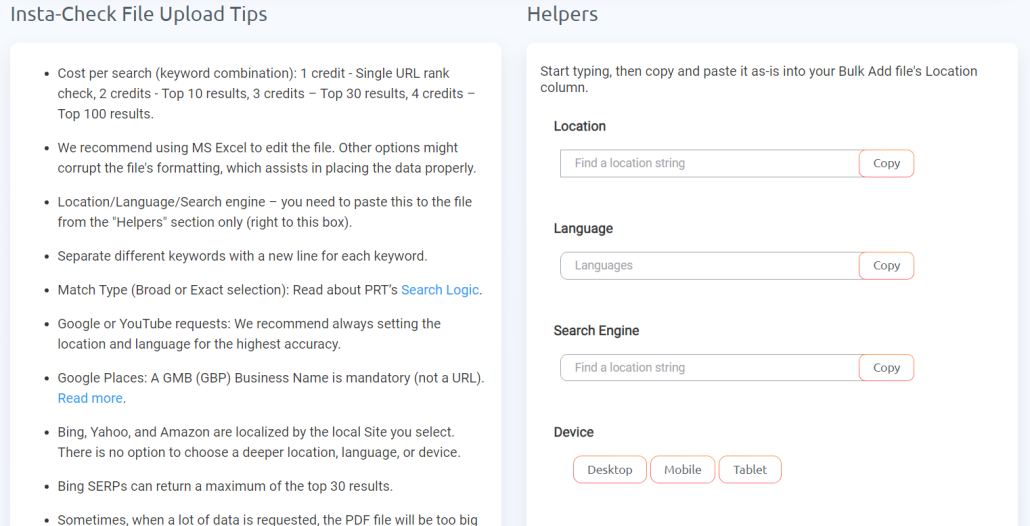
Use the Helpers to help you identify the right location, language, Google Site, and device type, then simply copy and paste from the Helper into the Excel file.
Finally, upload the file to the section that says “Drop File” exactly as we did when uploading the Bulk Add file above. ProRankTracker will now generate a report showing you the current rankings of the URLs/keywords specified in your file!
Track Ranks in Bulk Using Projects
Another way you can lump ranks together to track at the same time is with projects.
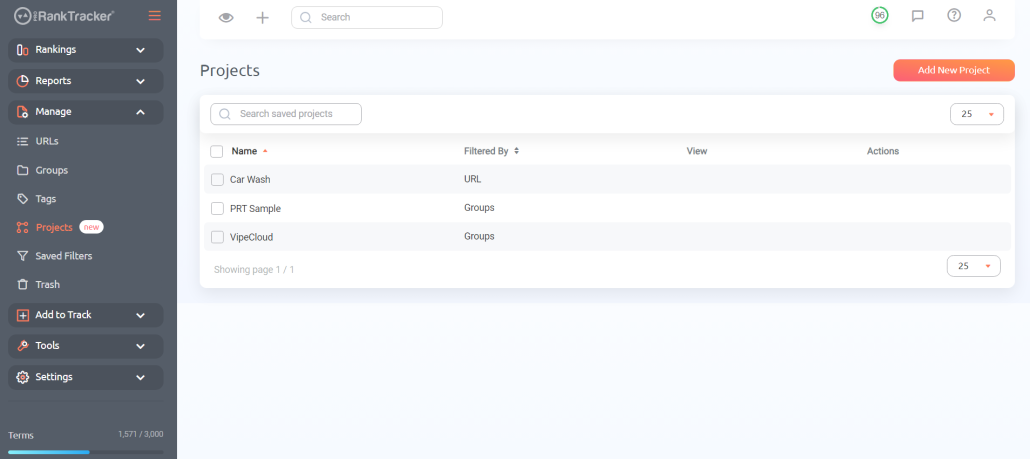
Projects are an organizational tool that allows you to gather URLs and keywords under a single umbrella, making it easy to get a feel for your ranking progress without going to multiple pages.
To make a project, click on “Projects” under the “Manage” tab on the left-side toolbar, then click “Add New Project.”
Fill in the appropriate details, including:
- Project name
- Sorting details
- Which data to include (URL, search term, device type, groups, tags, etc.)
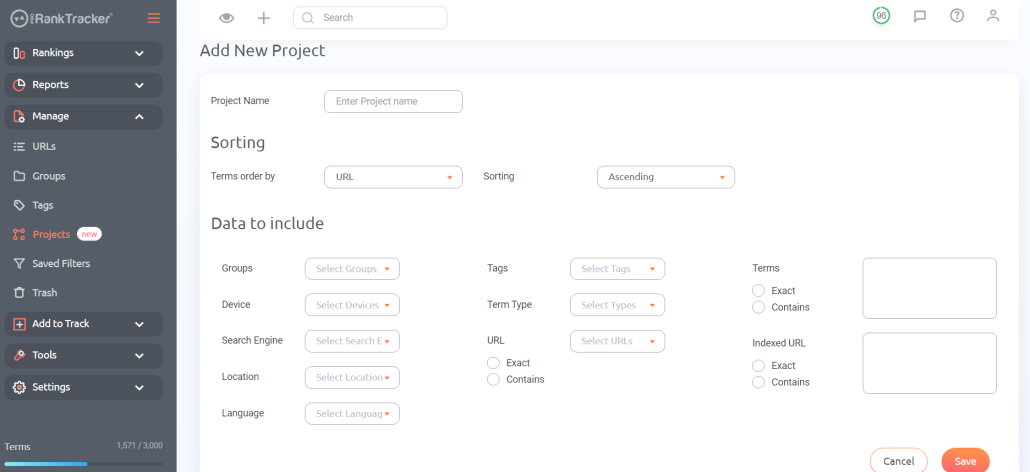
Projects are the highest organizational structure on PRT, making them perfect for tracking ranking campaigns, competitors, or individual clients. We’ll talk about how to use the Project View in the next section.
Use Rankings Views to Check Ranks in Bulk
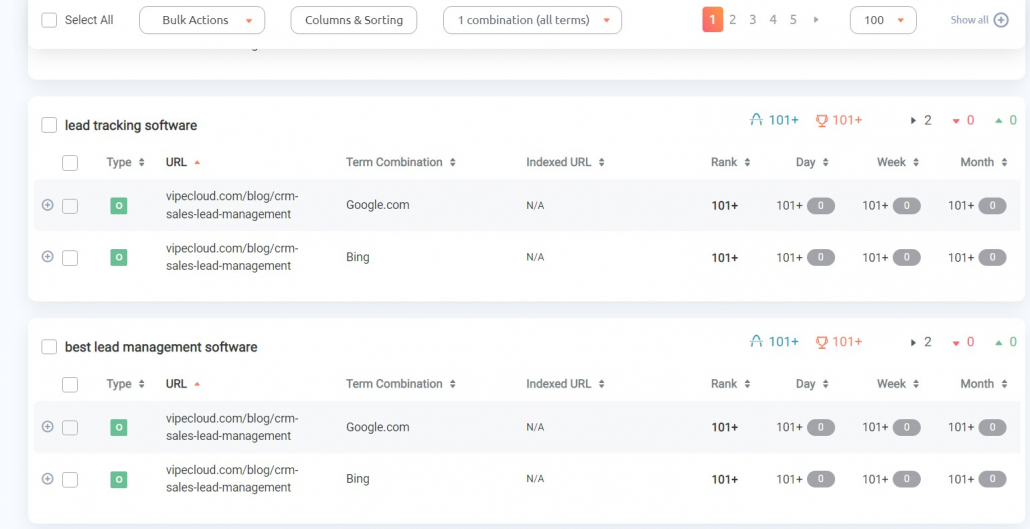
You’re probably ready to start getting data on your new keywords instantly, so let’s head over to the “Rankings” tabs on the left-side toolbar. There are 6 in all:
- Dashboard
- Project View
- URL View
- Term View
- Daily View
- Full SERPs
Each of these views gives you a slightly different angle on your ranks.
The dashboard gives you a broad overview of the significant changes in just a few seconds.
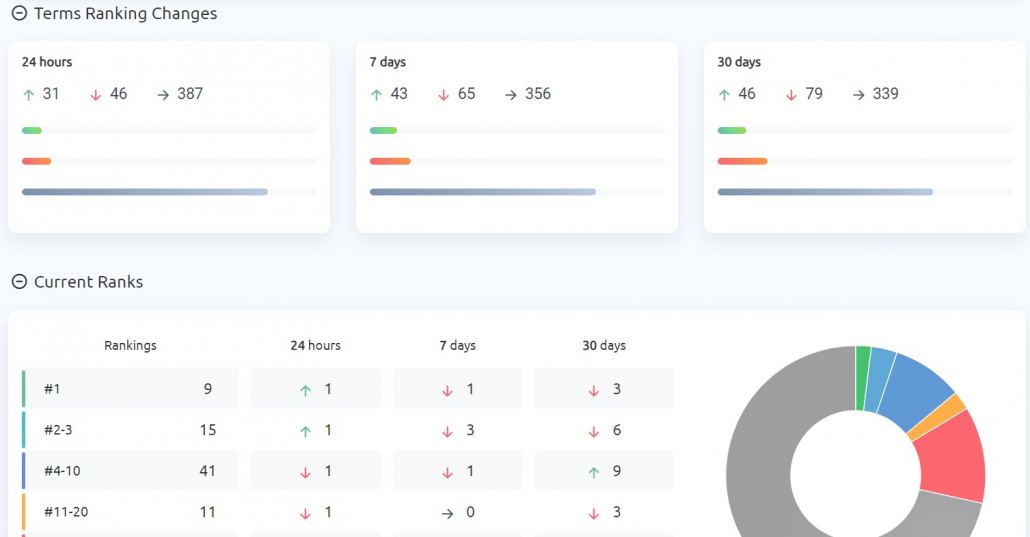
The Project View allows you to see the health of an entire project on a single page. It includes:
- Rankings overviews
- A graph of daily changes over time
- A heat map, which can show ranking changes over long periods of time at a glance
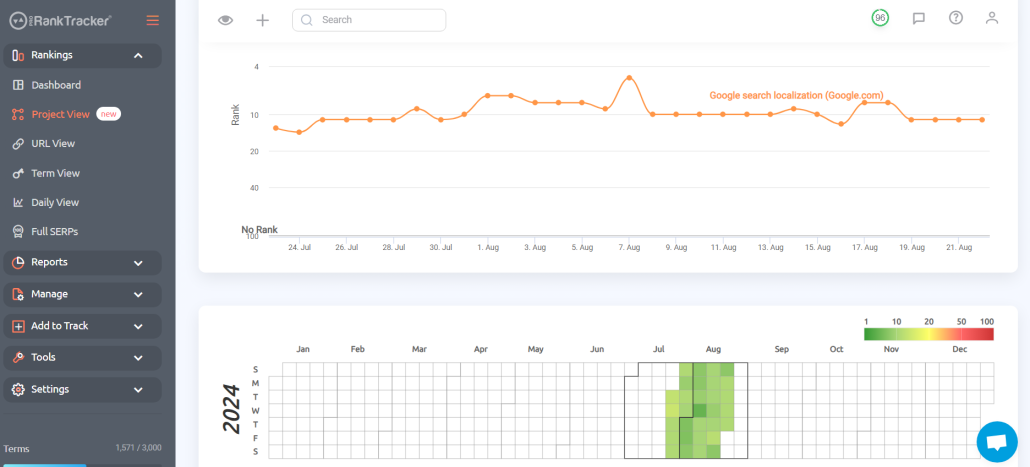
image10
URL view and Term view organize your ranks by URL or term (obviously!) For example, the URL view will show you all the terms being tracked for each URL, whereas the term view will show you all the URLs for which a certain term is being tracked.
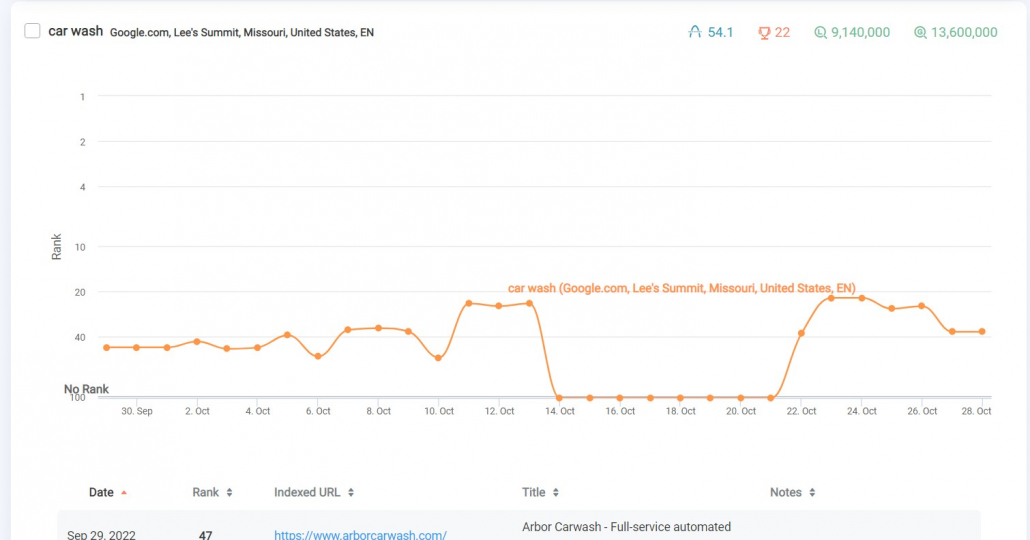
Daily view is a graphical view that shows you change over a selected period.
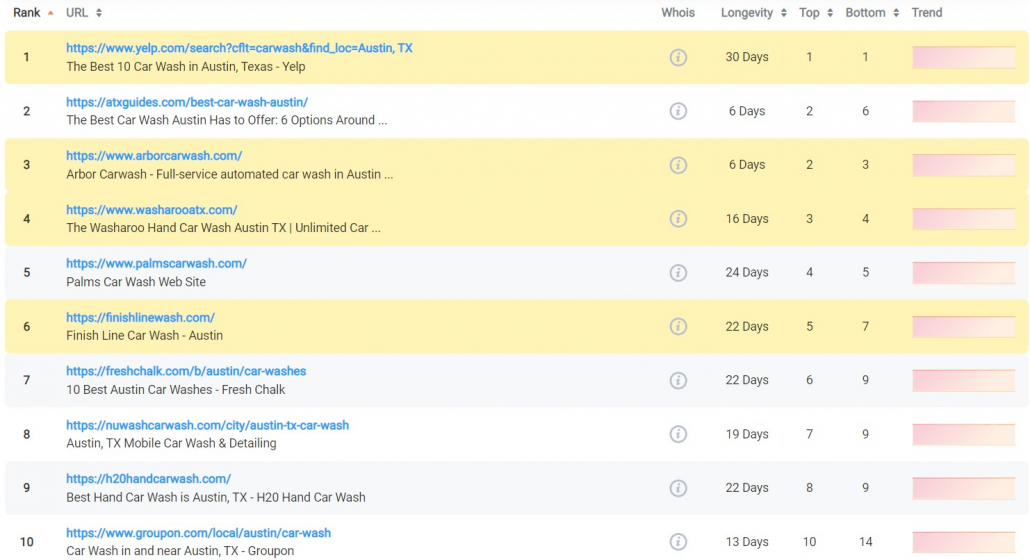
Full SERPs gives you a detailed look at the current SERP and a graphical view of how each player on the SERP has moved over the previous days.
Generate Reports to Keep Tabs on Your Ranks
Your ranks will constantly change, and you’ll quickly realize that keeping up with them can get difficult.
One of the best ways to keep tabs on your ranks is to generate automated reports regularly.
ProRankTracker allows you to set up reports that will automatically send in 2 different ways:
- Scheduled reports will send on a particular schedule that you set in advance. For example, you might set an Overview Report to send daily and a Daily Breakdown to send weekly.
- Triggered Notifications will send a report only when a specific, predetermined event occurs. For example, you might set a notification to send whenever a rank drops or increases by more than 2 ranks.
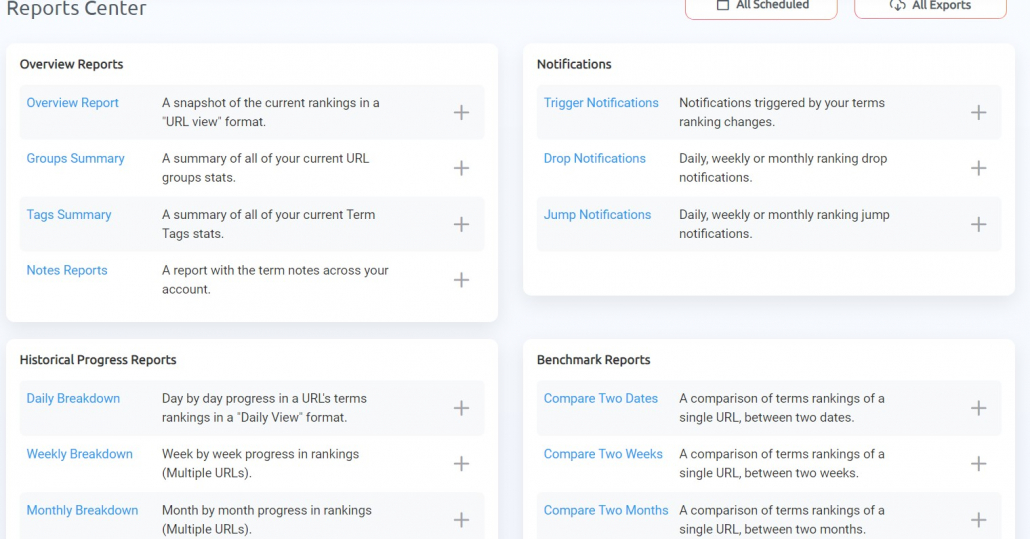
ProRankTracker has more than 20 types of reports and notifications to choose from, and you can generate unlimited reports, so don’t be shy!
Important Details to Include When Adding Keywords in Bulk
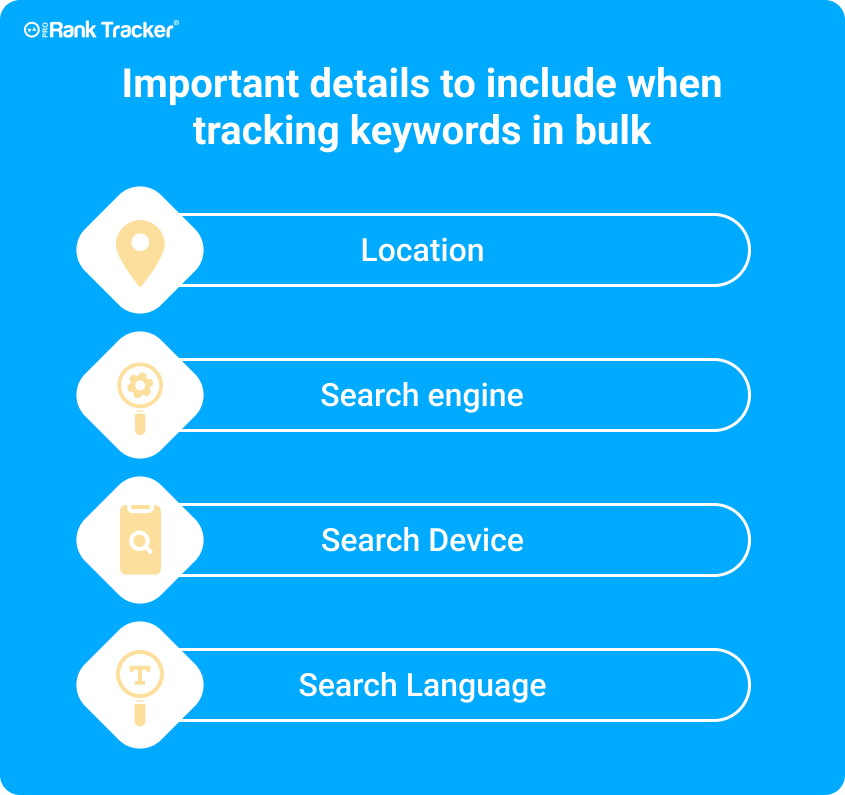
What type of data should you include when adding keywords in bulk?
Is it enough to simply pair a URL and a keyword? Or do you need to include more data than that?
Including the appropriate details allows ProRankTracker to provide you with better data later on. For example, adding location data will enable ProRankTracker to provide you with a more specific SERP.
Let’s look at the most important details when adding keywords in bulk.
Location
First and foremost, almost every new keyword-URL combo you add should include location data.
If you don’t have location data, you’ll be analyzing SERP data for a SERP that nobody sees.
What does that mean exactly?
It means that Google generates personalized SERPs depending on the searcher’s location. So if you don’t include location data, you won’t see the SERP as it is ACTUALLY presented to the searcher.
In other words, ensure you include location data specific to YOUR business.
Search Engine
Second, make sure you include the search engines where you want to track your new keyword.
I know what you’re thinking: “The only search engine that matters is Google.”
In reality, you should also be including keywords for Yahoo and Bing. Even though you might not get much traffic from them, it’s worth it for the lower competition and higher sales rates.
Don’t ignore the little guys! They may turn out to be your big money-makers!
Search Device
Another important detail is to include the type of search device that you anticipate your audience using. For example, if you want to include multiple search devices for a single keyword, you can include them as separate data points.
Like with locations, Google customizes SERPs depending on the search device of the searcher.
By putting that information into ProRankTracker, you can get more specific (and, therefore, more helpful) data about your ranks.
Search Language
Finally, you should include your search language to filter out spurious results that might occur in other languages.
For example, you don’t care about searchers who searched in French and are randomly shown your webpage. You can filter those searches out in the data you see by including a search language when uploading your new keywords in bulk.
Since 55% of the internet is in English, this is even more important if you care about searches in other languages. If you’re targeting Spanish-speaking searchers, forgetting to add Spanish as your search language could be disastrous.
FAQ
What is bulk keyword rank tracking?
Bulk keyword rank tracking allows you to monitor the search engine rankings of multiple keywords simultaneously. Instead of checking each keyword’s rank one by one, you can track a large set of keywords at once, saving time and improving your efficiency. It also includes strategies to add multiple keywords simultaneously, which some keyword tools allow.
How do you check bulk keyword rankings?
To check bulk keyword rankings, you’ll need a rank-tracking tool that supports bulk uploads like PRT. Follow the individual tool’s instructions for bulk-adding keywords to track. PRT’s bulk-add protocols are outlined in the article above!
How do you rank for multiple keywords?
Ranking for multiple keywords occurs as the result of careful planning. The best way to rank for multiple keywords is to ensure that you’re properly tracking your keyword ranking data and responding to any changes on the SERP with strategic changes. If your ranks drop, it means you need to change something. If your ranks improve, you should keep doing more of what you’re doing. Use a bulk keyword rank checker like PRT to help you improve quickly.
Conclusion
Keyword rank tracking is essential, but it can be time-consuming. If you find a tool that allows you to track your ranks in bulk, you can save time and track even MORE ranks!
By following the tips in this article, you should be able to easily start tracking your ranks in bulk with ProRankTracker. This will allow you to continue to develop your rank tracking as your business grows and develops.
Happy tracking!