
How to Create a White-Label SEO Report for Your Clients
So you’re getting good at tracking your ranks, and you’re starting to sell SEO services as a white-label SEO provider.
As an SEO provider, your most important role is to keep your customers informed. If your customers feel like you’re leaving them out of the loop, they’ll:
- Get upset (because they don’t know what you’re even working on)
- Stop trusting you
- Switch to another provider
In other words, keeping your clients in the loop is one of the FIRST things you need to get sorted out when you start selling SEO services.
Luckily, keeping your clients comfortable, happy, and informed is easy if you know how to take advantage of white-label reports.
White-label reports allow you to send fully branded and customized reports to your clients, helping increase trust by improving transparency and consistency WITHOUT adding a boatload of work to your plate.
In this article, we’re going to show you how to use white-label SEO reporting tools to improve your business and impress your clients.
We’ll cover:
- Step 1: Create Your Client’s Ideal Reporting Schedule
- Step 2: Prepare Your Ranking Tool for White-Label Reports
- Step 3: Generate and Automate Reports
- Step 4: Monitor and Improve Your Strategy
- FAQ
Step 1: Create Your Client’s Ideal Reporting Schedule
The WORST thing you can do when creating the perfect reporting schedule is ignore your client’s particular needs/wants.
That means you should ALWAYS start creating reports for your clients by asking them what types of reports they feel they need.
Most clients will respond by saying something like, “What types of reports can you generate?”
In this section, we’ll look at the 5 major report types in ProRankTracker (there are more than 20 individual reports in ProRankTracker’s Reports Center). Each report type has a TON of flexibility, and every report is white-label ready.
Overview Reports
The overview reports are the “bread and butter” report to give your clients a sound, broad-level understanding of their current ranks.
As your clients scroll through a basic overview report (which you can send directly to their inbox from ProRankTracker), they’ll see a detailed look at their URLs and tracked keywords.
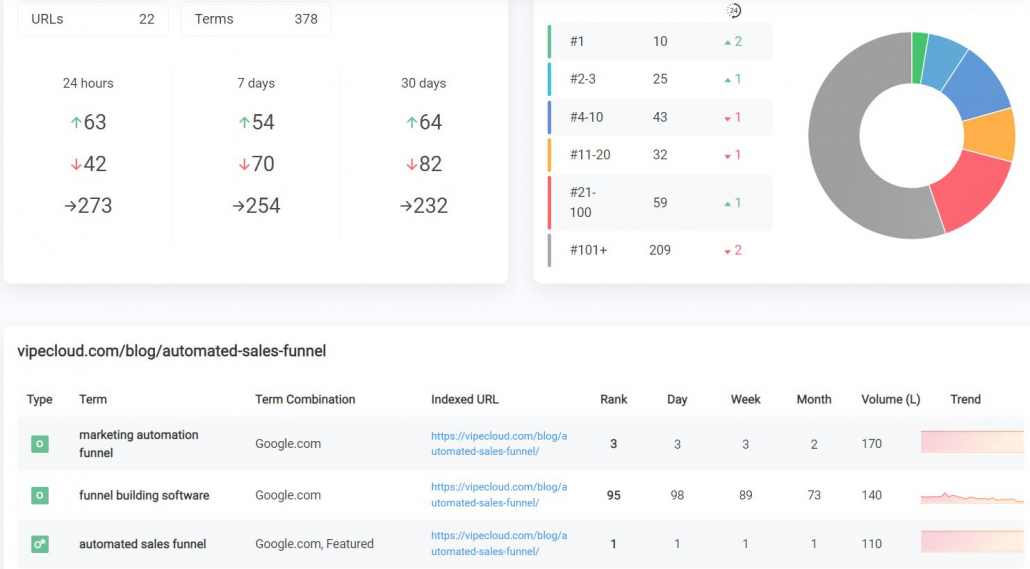
You’ll get an easy-to-understand breakdown of each URL’s rank, historical change, search volume, and ranking trends.
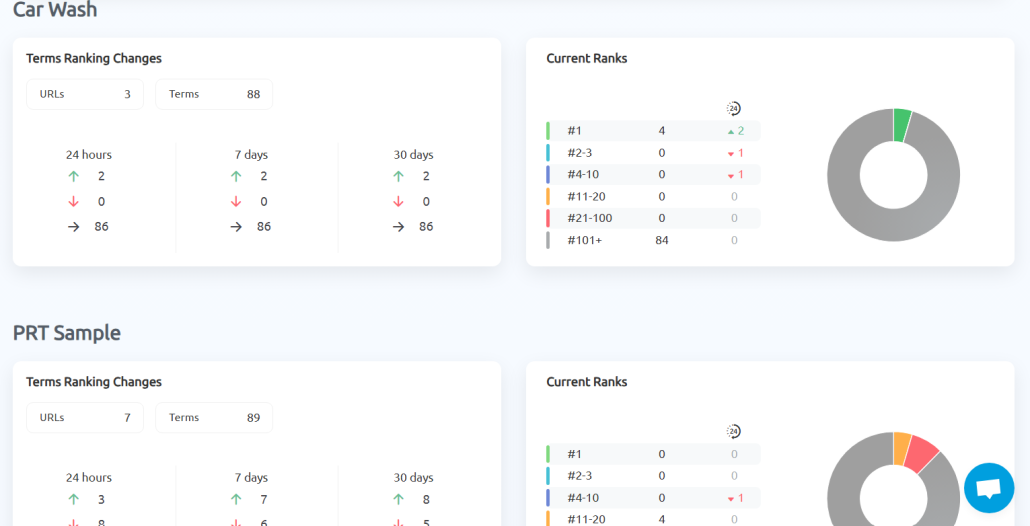
There are also other types of overview reports like the projects summary report, which allows you to get an overview of all your tracked projects in a single page.
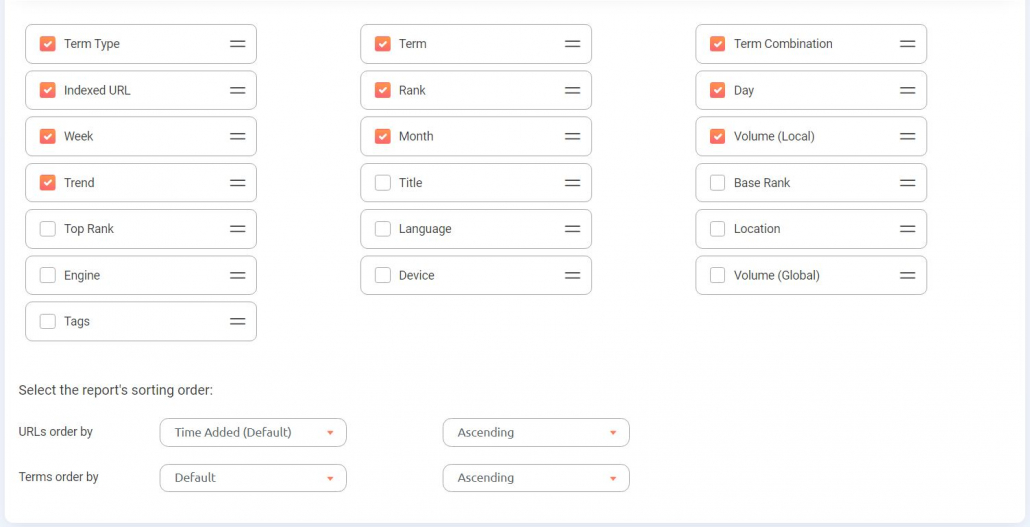
A report that you can’t customize is (almost) useless.
You can tailor these reports any way you like.
For example, you can make the data table show every parameter available or go “minimalist” and deliver keywords and rank only.
Some clients prefer to see the ranks only, while others want an in-depth report with every parameter available.
When creating an overview report, simply select everything your client wants in their reports.
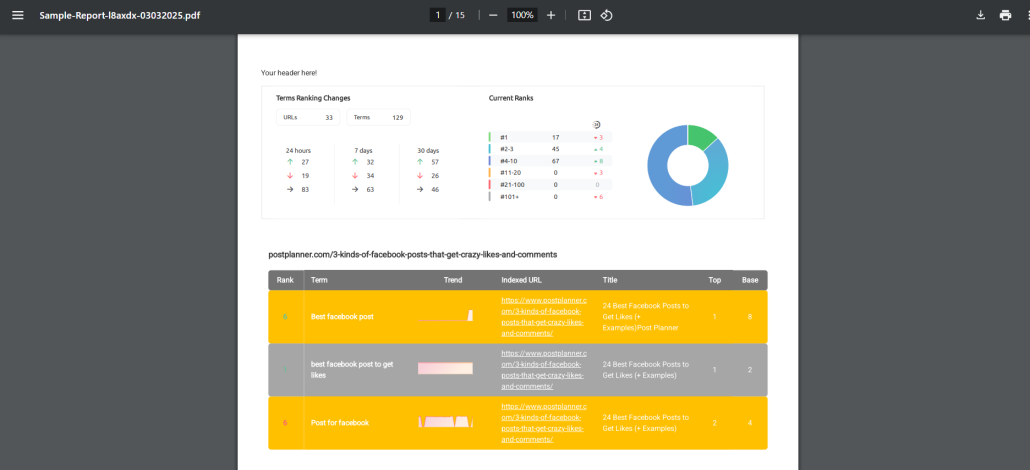
As with all the other reports in this list, overview reports are fully white-label-ready. That means you can customize their header, footer, cover letter, and color scheme to match your company’s colors. Here’s what a white-label overview report looks like:
Progress Reports
Progress reports are similar to tracking stocks on the stock market.
The top of each historical progress report gives you an overview of how each of the keywords for a specific URL has performed over your selected date range.
As you scroll down, it shows the historical progress specific keywords have made in a detailed chart for each keyword.
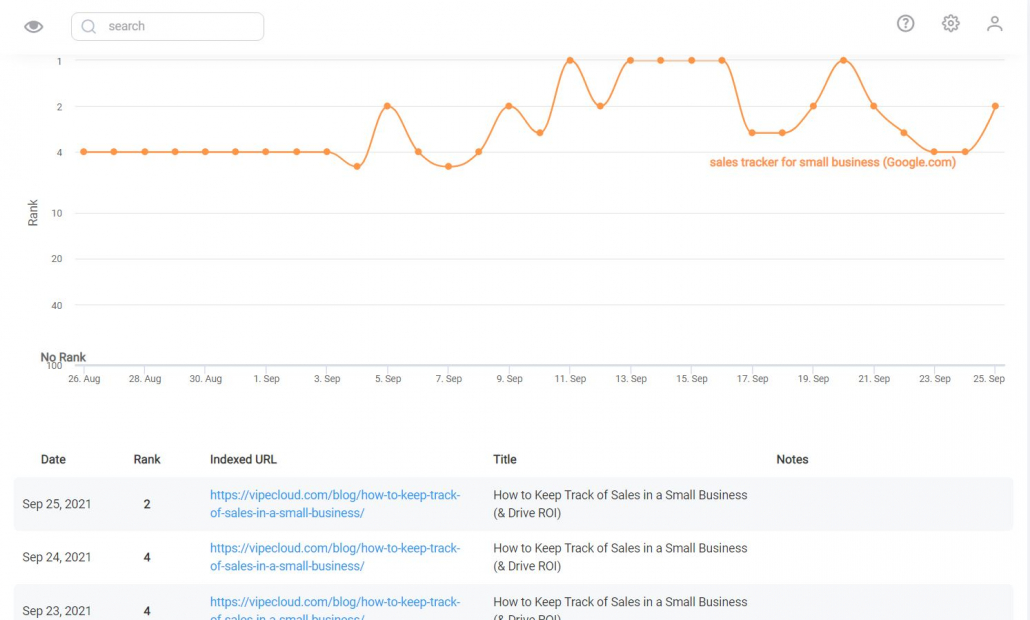
Note: The above graph is for a daily historical progress report, but you can “zoom out” by using a weekly or monthly format as well.
You can make the graph show any period by defining a date range.
Historical progress reports are essential for understanding how a URL’s keywords progress over time and comparing that data between search engines and devices.
Comparison Reports
Comparison reports are ideal for comparing different scenarios and helping you understand why your ranks perform well in certain areas and poorly in others.
For instance, you might want to compare:
- How the same keyword ranks for 2 different URLs
- How the same URL/keyword combo ranks in different search engines, locations, or search devices.
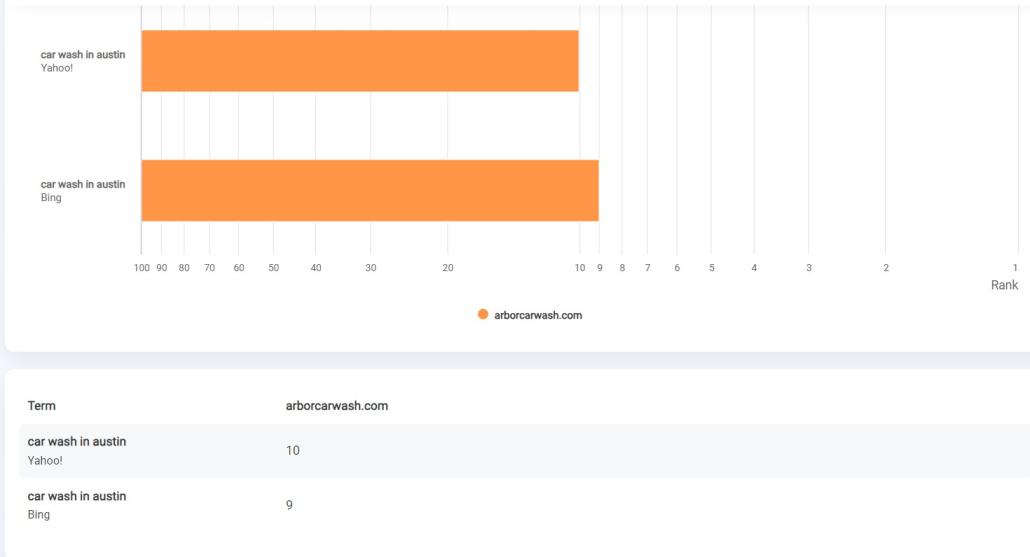
Are you getting more traffic from certain areas in your city than others? Try using a comparison report to figure out why you’re ranking better in one location than another.
Benchmark Reports
The benchmark report is another excellent report for capturing a wide-angle view.
There are 3 different benchmark reports:
- Compare 2 dates
- Compare 2 weeks
- Compare 2 months.
This type of report allows you to compare all the ranks for a specific URL between 2 selected days, weeks, or months.
In other words, you can use 1 day, week, or month as a “benchmark” to help analyze how your rank changed between that selection and a later selection.
Using this report, you’ll grasp the big picture of a specific campaign performance over a given period.
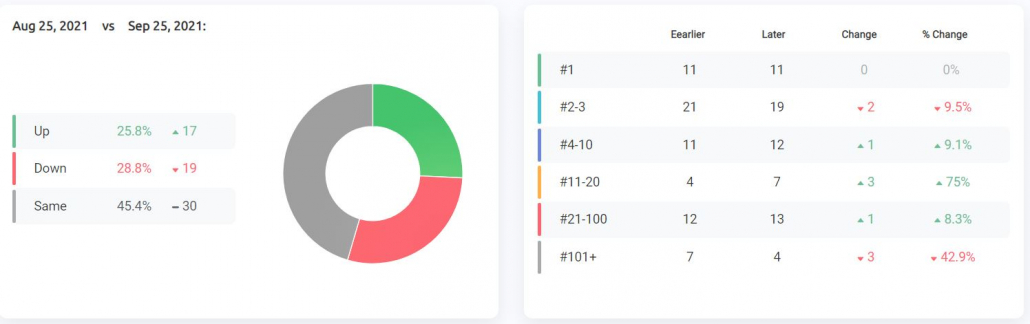
For example, let’s say you track 32 keywords for your website.
In a single, unified report, you’ll see the total changes for all 32 keywords between the 2 dates or periods.
You’ll see which terms rose, flopped, or held steady.
Here’s a benchmark report comparing the same URL/keyword combo on the same day but a year apart (it has the same white-label style we applied to the overview report above):
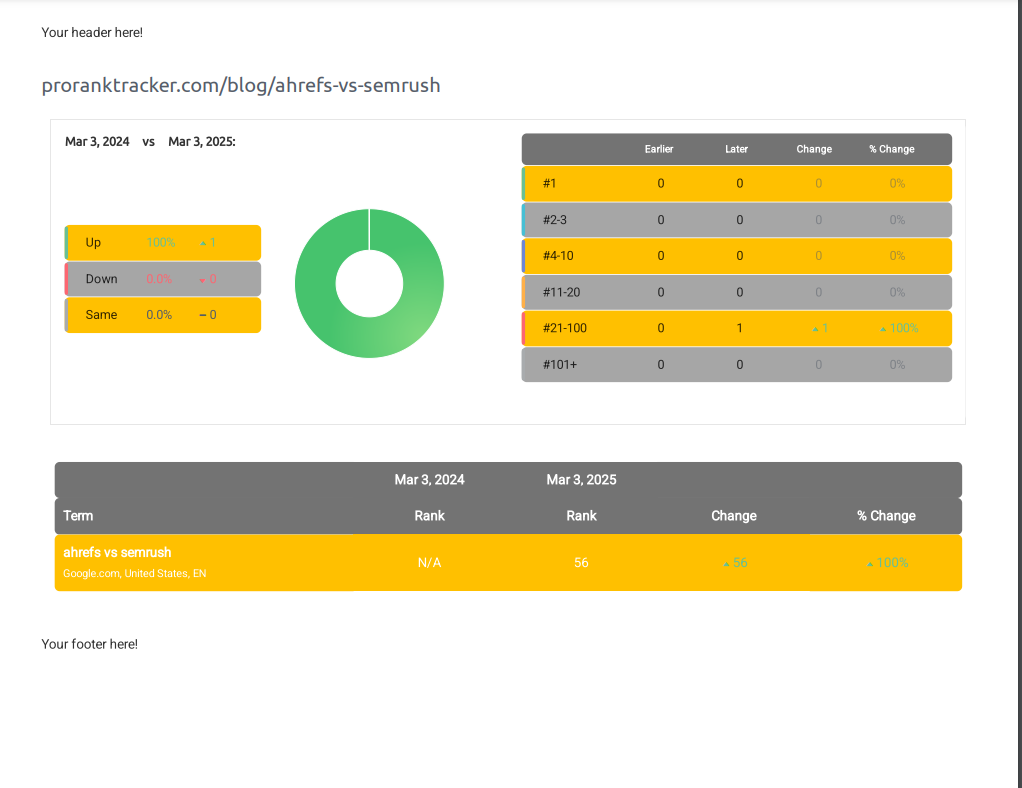
If your graph is all green like this one, all your keywords have improved!
You can use this same report type to compare 2 weeks or months instead of 2 days.
Presenting a chart like this to a client can help improve customer loyalty over time by showing them the effectiveness of your SEO services.
This is also an excellent report to include in a case study to see a campaign’s success. You can also show how a competitor dropped in ranks by comparison as the cherry on top.
Notifications
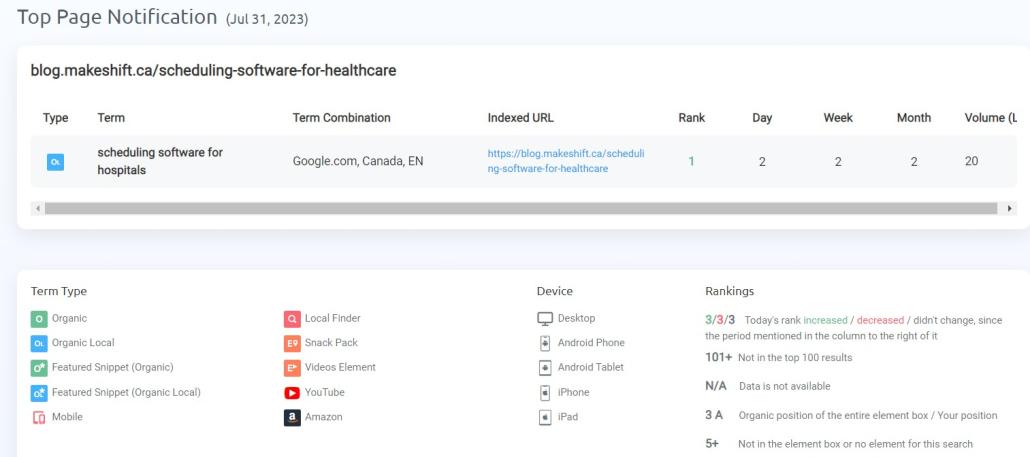
Notifications are essential to any reporting strategy because they reduce the time it takes to act on new information. They alert you to important events or trends IMMEDIATELY, allowing you to take action without delay.
For example, you might set up notifications for:
- Your ranks dropping or increasing by a certain number or percentage
- One of your URL/keyword combos reaching a certain rank
- One of your tracked terms falling off the first page of Google
Automated notifications save you time and ensure you stay on top of critical events. They can even help you avoid disasters by alerting you before a problem goes from bad to worse.
Step 2: Prepare Your Ranking Tool for White-Label Reports
Now that you’ve (hopefully) prepared your list of reports your clients need to receive regularly, let’s discuss getting your ranking tool ready to produce those reports.
After all, you can’t just generate reports if there’s no tool keeping track of your data for you!
In this section, we’ll discuss how to start tracking, organizing, and reporting on your data using ProRankTracker. If you want to follow along, I highly recommend signing up for a 14-day free trial!
Add URLs and Keywords
The first step is to add all your keyword/URL combos to ProRankTracker, and the easiest way to do that is within the Add Wizard tool.
1. Click on the Add Wizard tool in the left-hand toolbar.
2. Fill in the URL, Keywords, and Group/Tag fields
3. Click “Next Step.”
4. Select your desired options for search device, search engine, location, language, and Snack Pack
5. Click “Save.”
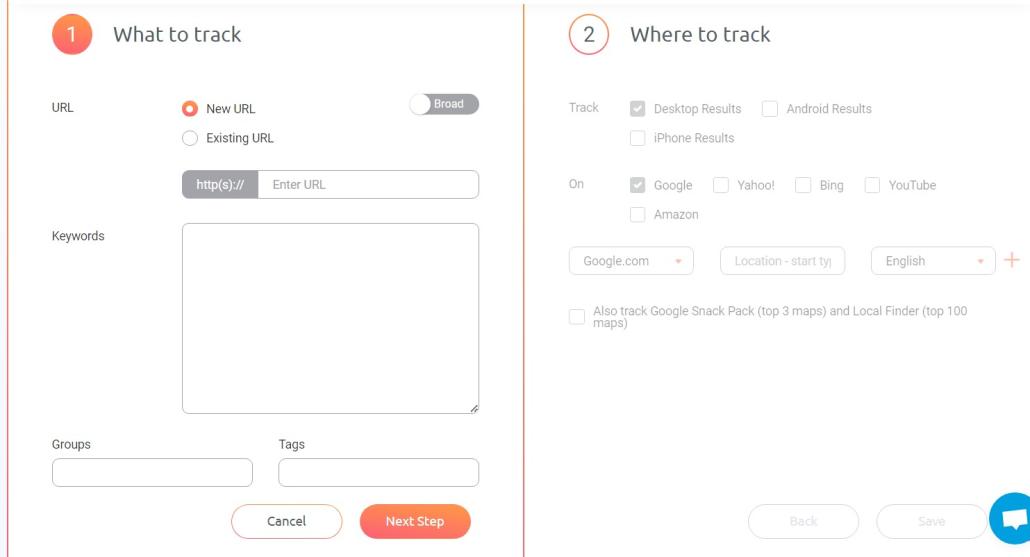
That’s all there is to it!
Repeat that process for each URL/Keyword combo you want to add. If you have a lot to add at once, try using the Advanced Add tool for its bulk add feature.
If there are any critical URL/keyword combos, we recommend highlighting them using ProRankTracker’s Star feature.
To do so, go to the Project View, Term View, or URL View (after adding the keywords as shown above), and enable the Star column in “Columns and Sorting.”
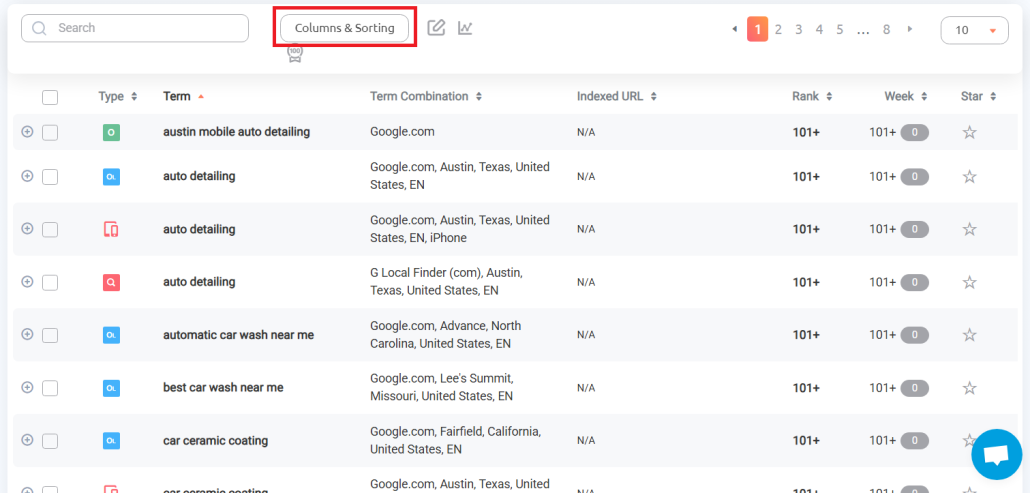
Then, select the star next to your most important keywords/URLs.
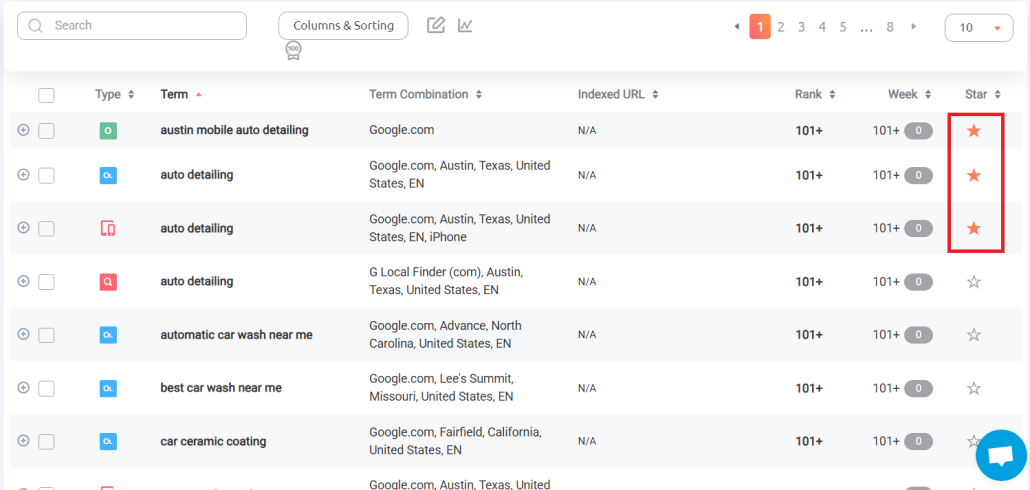
This allows you to sort future reports by your most critical strategic keywords and URLs (discussed below)!
Organize Your Data
Now that you’ve added the keywords and URLs you want to track on ProRankTracker, you can create a Project (or multiple Projects) that helps you keep track of that data.
Projects allow you to separate large sections of the data you’re tracking from one another. In other words, they help you split ALL your data into manageable chunks that you can later use in reports, notifications, and other areas.
Go to the Projects menu under the “Manage” tab and select “Add New Project.”
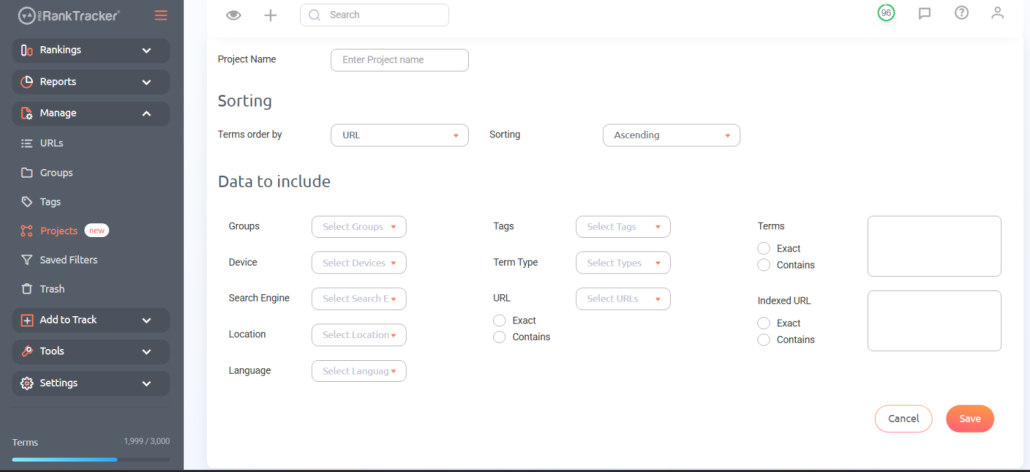
Here, you’ll select which tags, groups, URLs, and keywords to put in the Project.
When making a Project, consider your goals.
- Trying to separate clients’ data from each other? Make a Project per client
- Trying to split up your SEO campaign by location? Make a Project for each location.
- Want to understand how mobile and desktop results vary? Make a mobile Project and a desktop Project.
The point is to make the Project that fits your needs (there’s no limit to how many you can make), so use your creativity to drive you here!
Create Templates
All of ProRankTracker’s reports are customizable, so you can brand them with your own colors and logo.
To customize reports, go to the Reports Center, then click “Templates” at the top of the page. Next, click “Add New Template.”
From this page, you can customize almost any part of your reports, including:
- Colors
- Text styles
- Header
- Footer
- Cover letter
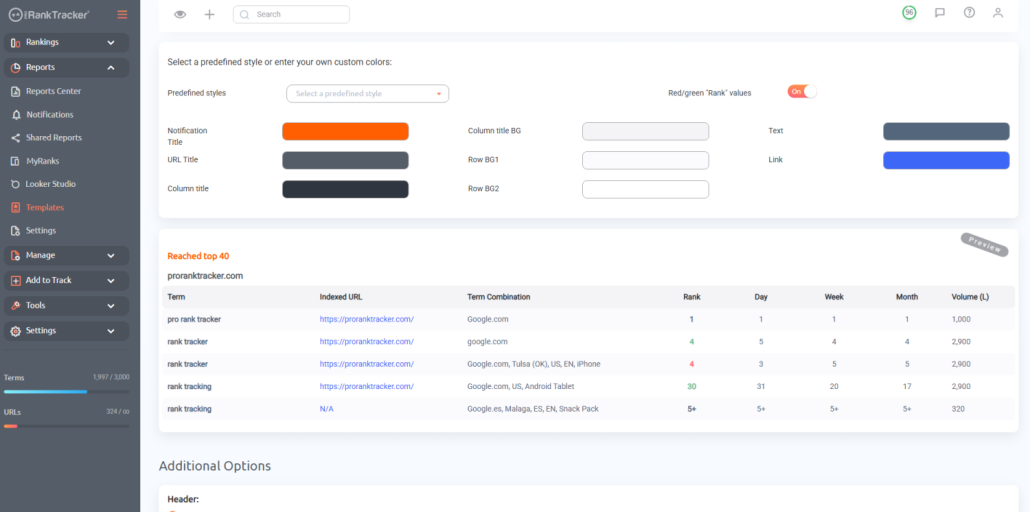
You can create as many of these as you need, so experiment with different styles for each client or each type of report.
When you create a new report, select the template you want from your templates drop-down menu, and your style will automatically be applied to your report!
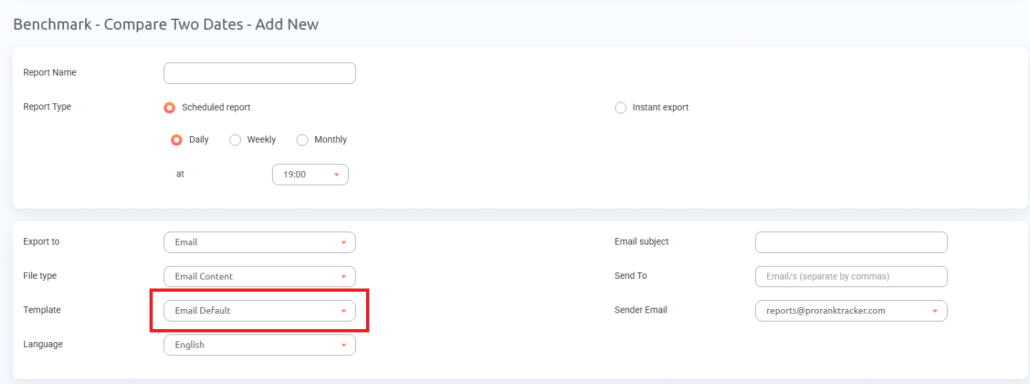
In our white-label examples above, we simply applied an existing template to the new reports we generated, automatically styling them according to those presets!
Customize White-Label Settings
If you’re an SEO agency, you’ll want to customize your reports with your branding and colors. It gives you a more reputable look and helps you impress clients.
ProRankTracker offers white-label report settings, which allow you to add your agency’s logo and a custom domain for shared reports (discussed below).
You can access these settings under the White Label tab in the settings menu. To get to the settings, click the gear icon in the top right corner, then click “PRT Settings.”
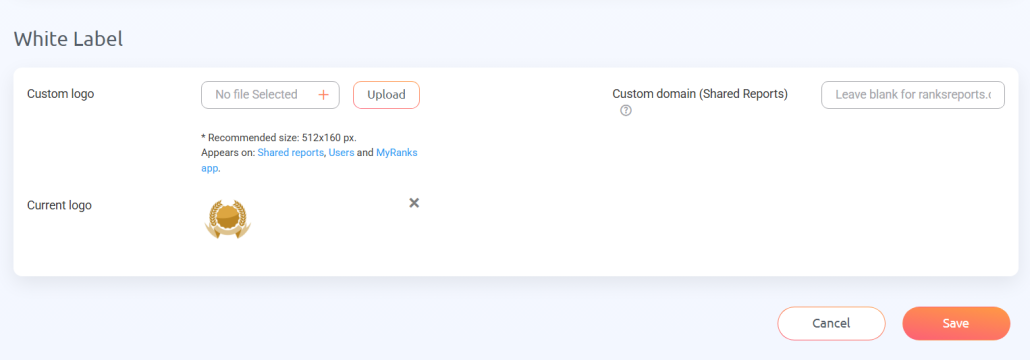
Note that your company’s logo will only appear on shared reports, sub accounts, and in the MyRanks app (all three report types are discussed in the next section).
Other customization, like colors, headers, footers, and cover pages, can be accomplished in the templates section, as discussed above.
Step 3: Generate and Automate Reports
We’re FINALLY ready to generate some excellent reports with the data and customization we’ve added to ProRankTracker.
In this section, we’ll discuss how to generate all the essential reports included in every ProRankTracker plan and some advanced reporting options for your more discerning clients.
Customize and Generate Reports
To generate a white-label report on ProRankTracker:
1. Go to the Report Center on the left-side toolbar.
2. Select from the list of available reports. All of the reports are customizable.
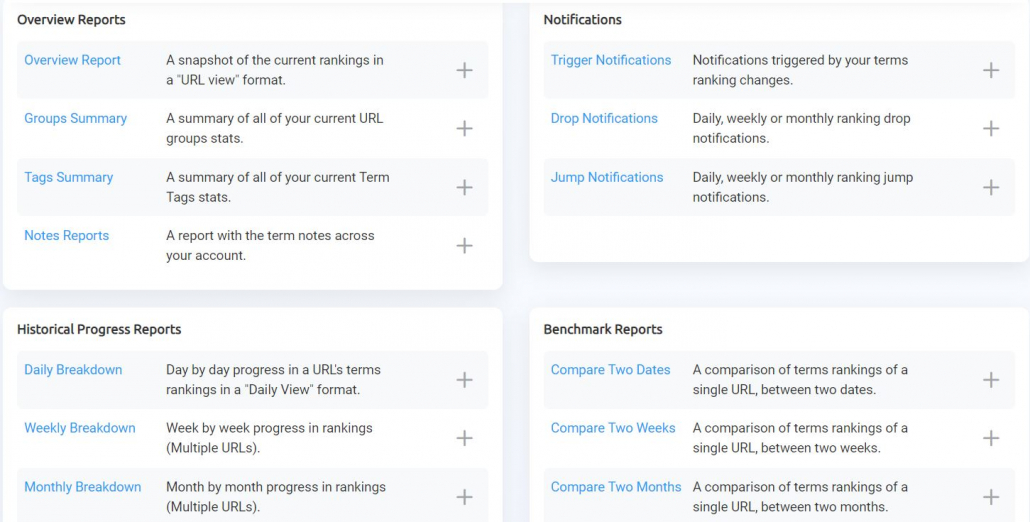
3. Name the report and select how often you want to generate that report.
4. Input the client’s email address and the sender’s email address (so the report comes from your email instead of from ProRankTracker).
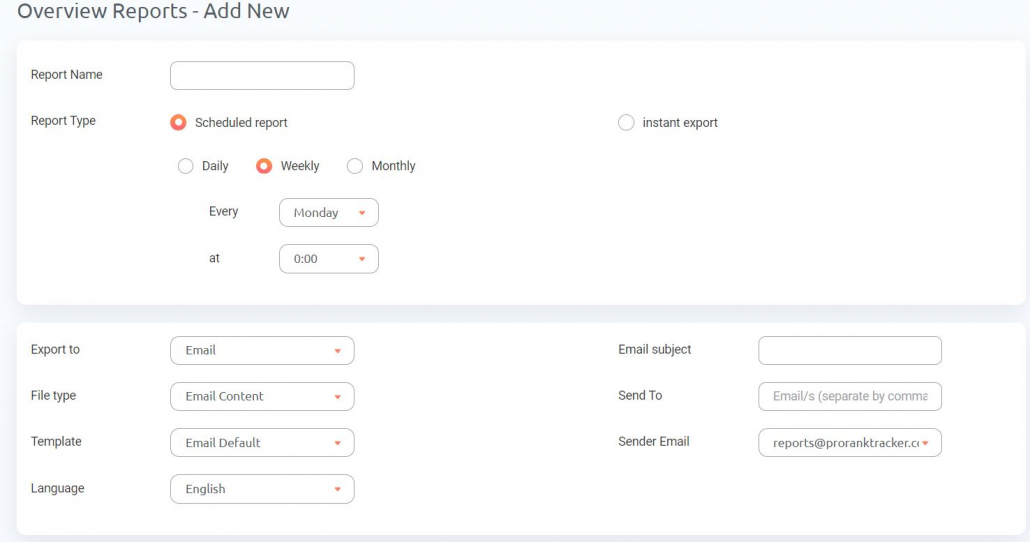
5. Select the template that you want to apply to the report. You can have multiple templates that give you quicker customization options. Your report will automatically apply the selected template styling EVERY time it sends–not just the first time.
6. Each report will ask for specific info. Fill in the boxes according to what you want to be included in the report, then click “Save.”
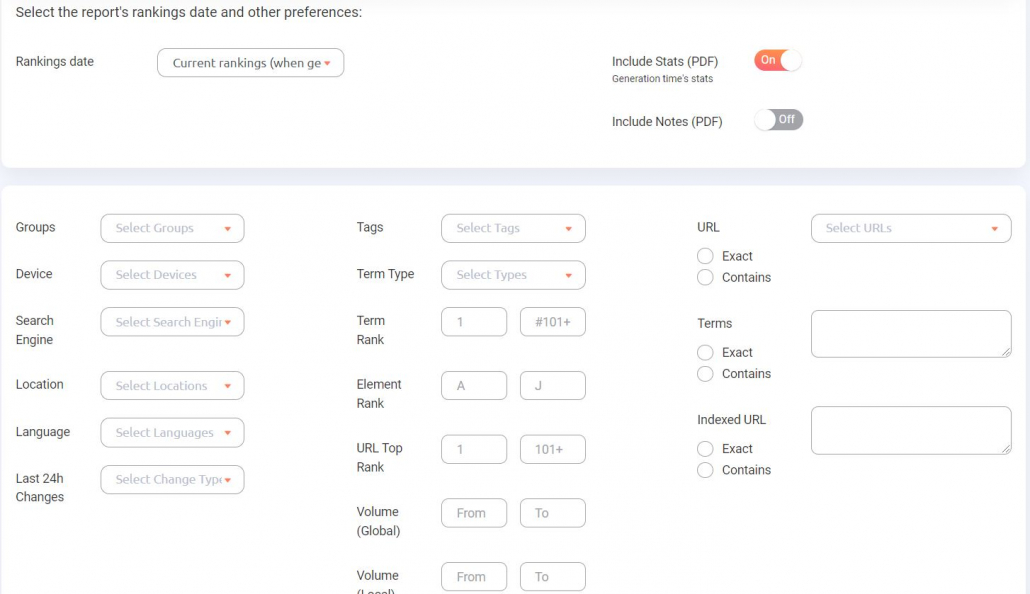
To display your starred data points first, select the “Star” option in the “Columns and Sorting” field of any report you generate. This option will display your most important data points at the top of the report, making them even more efficient.
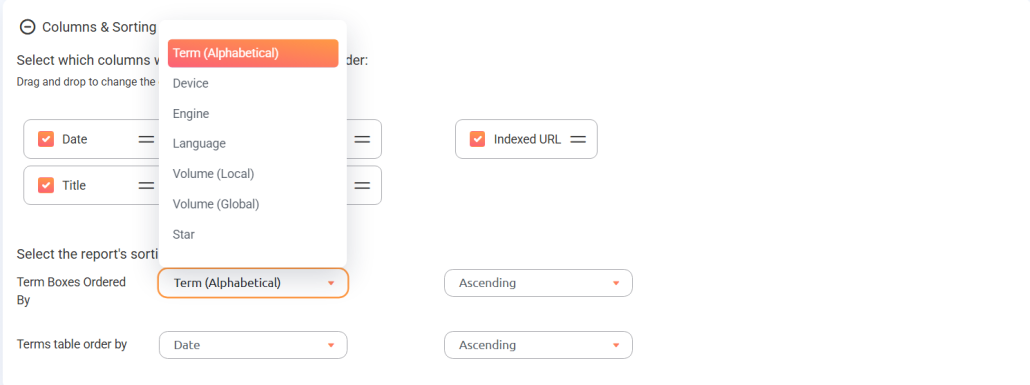
You’re in complete control of what the report includes and how it arranges it, so take some time getting these just how you want them.
Create an Automated Reporting Schedule
Based on the information you gathered from your client, you should be able to establish a slam-dunk reporting schedule full of white-label reports.
To create your schedule, just repeat the steps above to create reports until you’re happy with the number and type of reports you send to your clients.
Each time you generate a report, customize the schedule to send it on the right day and time.
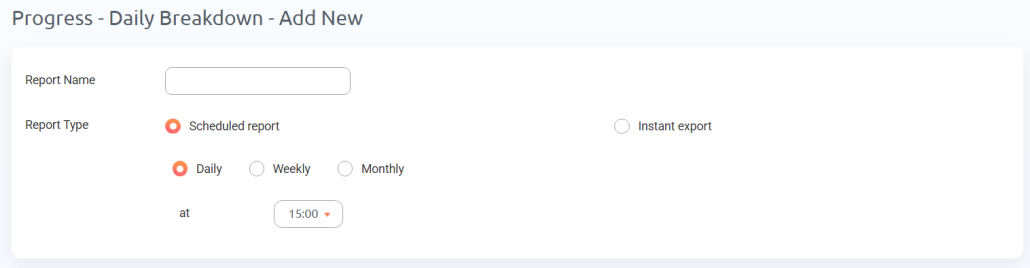
Customizing each report’s sending schedule allows you to create a fully automated reporting schedule you can totally forget about–the reports will keep sending at the right time!
Best of all? Every automated report will automatically have the same white-label styling you created WITHOUT any further input!
MyRanks App
If you want to impress your clients, how about introducing them to your rank tracking app?
That’s right! ProRankTracker includes access to the MyRanks app, allowing you to create custom client logins.
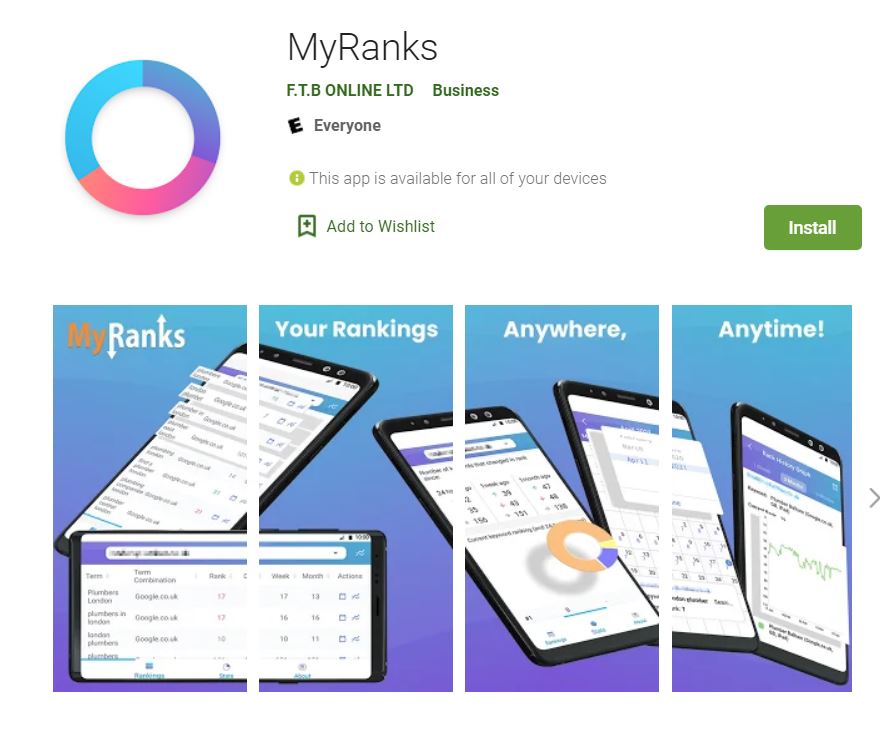
When they log in to their tracking account, they will see a dashboard branded with YOUR logo.
You can edit the appearance of the MyRanks app for your customers by using the settings within the Reports Center.
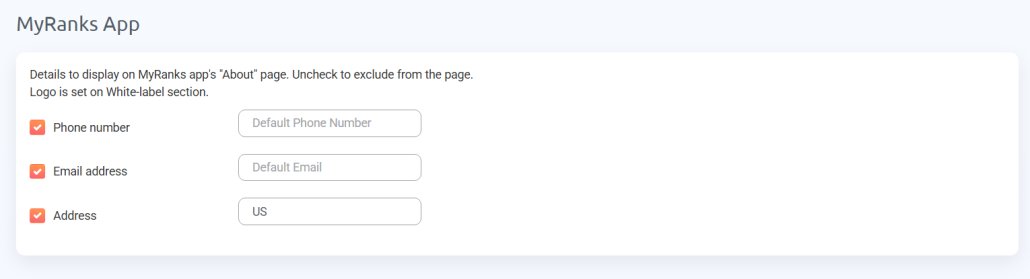
Using MyRanks makes you look like you have the resources and know-how of a larger company–even if you’re just a one-man show.
Take advantage of this app to impress your clients!
Live Reports
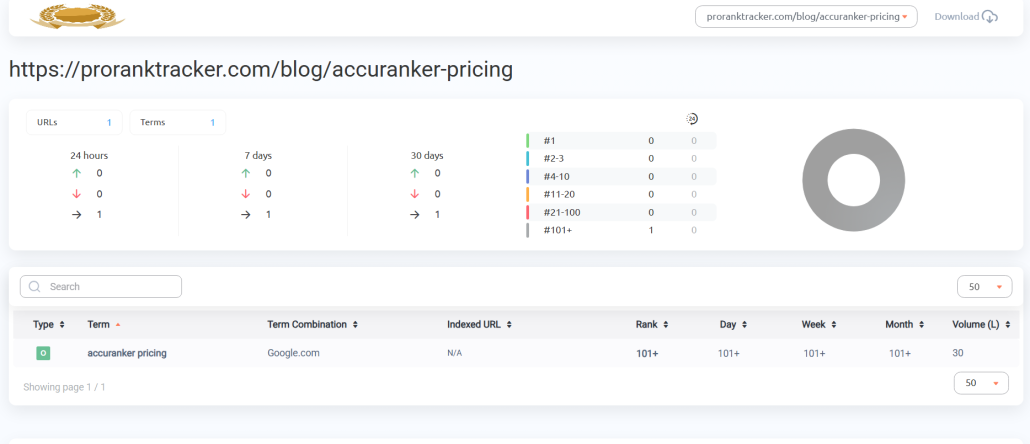
Live Reports are generated on a webpage that only you and your clients can access. By sharing these reports, they can check their ranks as often as they want.
The live report webpage is updated every day, and you control what information it contains.
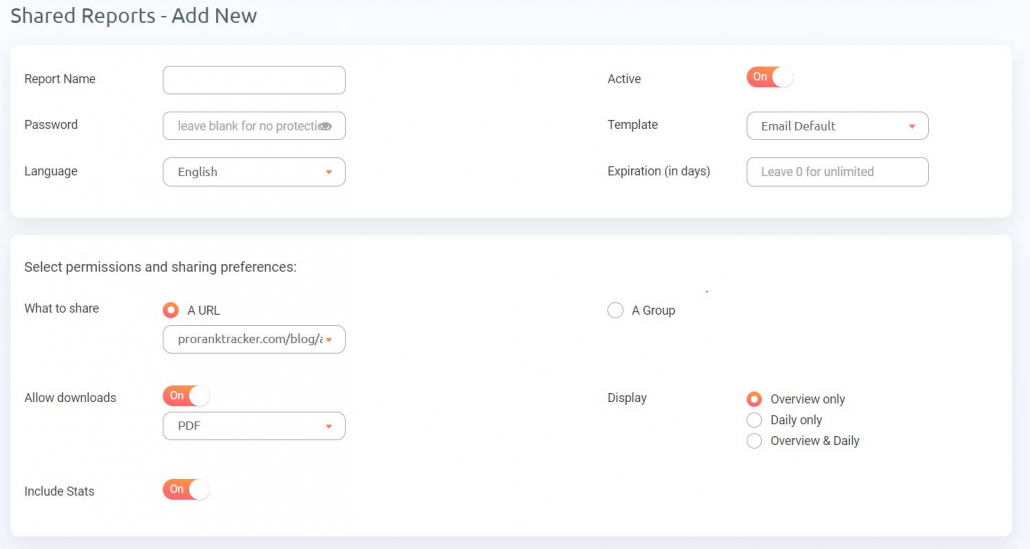
To add a new Live Report:
1. Go to the Reports Center
2. Click on “Shared Reports” at the top of the page
3. Click on “Add New Report”
4. Fill in the details, including the password if you want one and the data you wish to share.
Once you share the link and password with your client, they will have instant access to up-to-date ranking data whenever they want–just by clicking on the link!
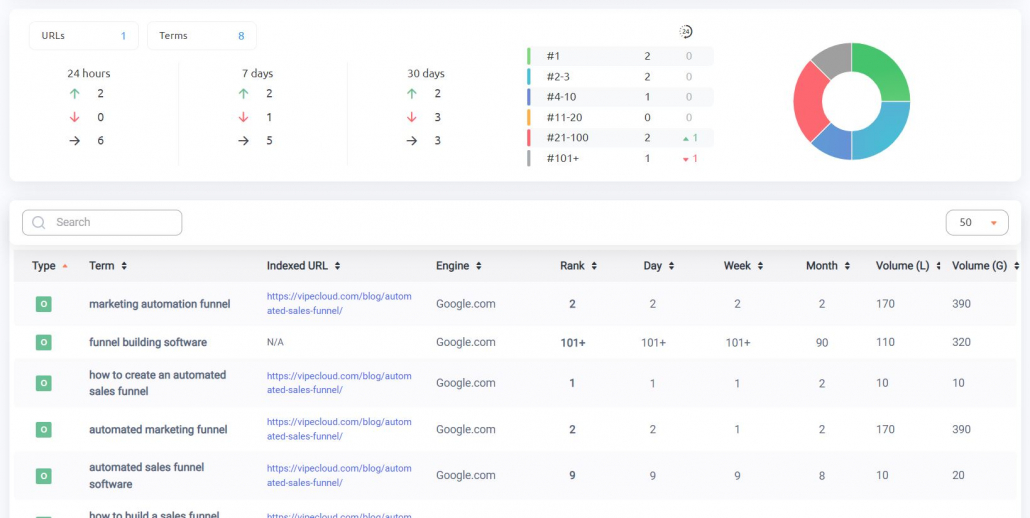
In ProRankTracker, you can even set up shared reports to share specific Project data with people. Sharing Projects gives you specific control over what data you share while still giving your clients a broad picture of their ranking progress.
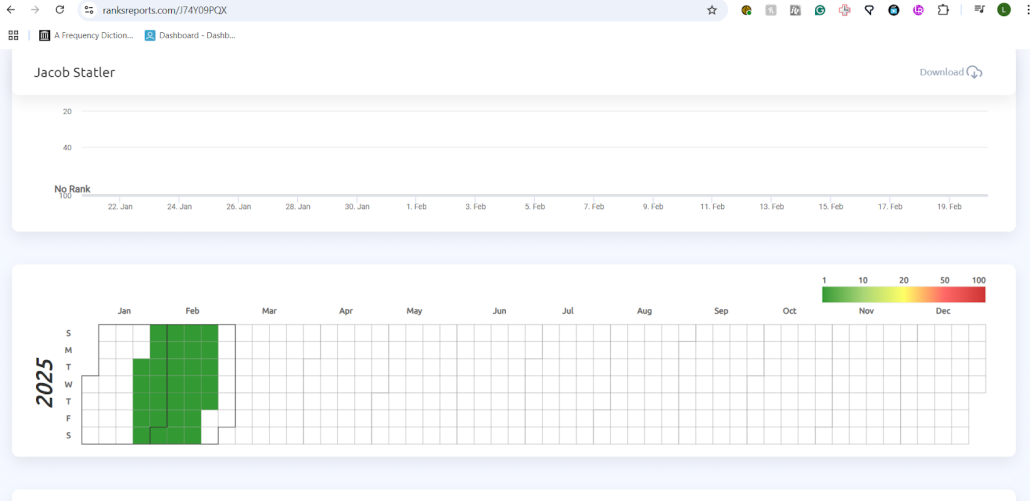
As with all the other reports mentioned in this article, live reports are fully white-label customizable, meaning you can share a branded webpage with your clients (which makes your business look incredibly professional and well-resourced).
Sub Accounts
If you have clients who are highly involved in their SEO strategy, you can give them direct access to their ranking data in ProRankTracker by creating a branded sub-account.
Sub-accounts in ProRankTracker are called users, and the account holder controls them. You can customize almost everything about these user accounts:
- Email address and password (so clients can use their own email and password to access ProRankTracker data)
- Data manipulation permissions
- Which data the user has access to
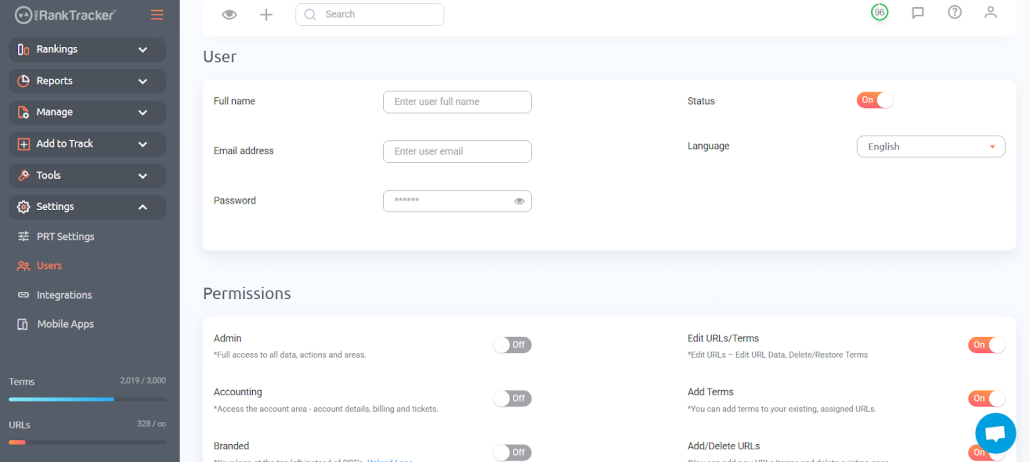
In other words, you can give your clients enough access to please them but not so much that they can see EVERYTHING you may be working on!
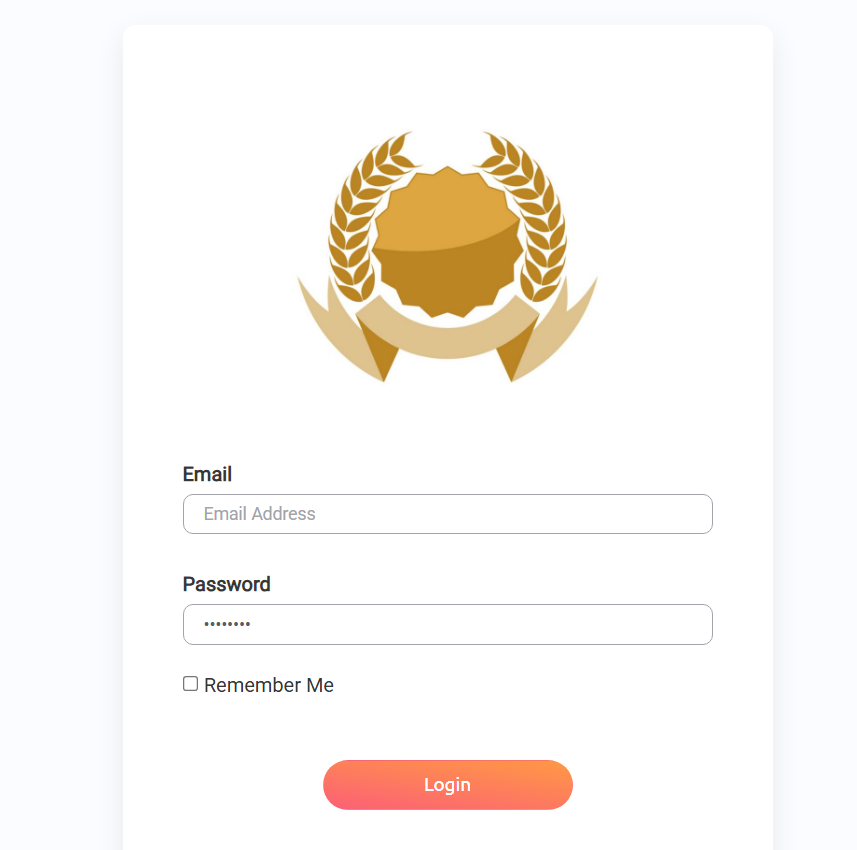
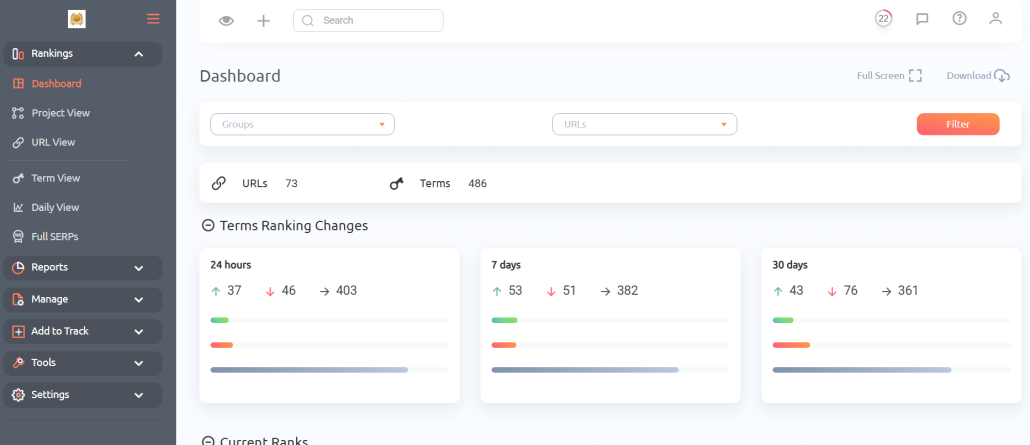
As with MyRanks and Live Reports, sub-accounts are fully brandable, meaning you can add your logo so you clients see your company’s logo instead of ProRankTracker’s at the top of every page!
Here’s what they’ll see at their log-in page (the gold banner is a placeholder for your company logo):
And here’s what the ProRankTracker dashboard looks like with your company’s branding:
Step 4: Monitor and Improve Your Strategy
Now that you have your reports up and running, all that’s left to do is continuously improve!
This is where many people go wrong–they use a rank tracker for reassurance instead of for guidance.
 In other words, they look at their rank-tracking data, but they don’t use it to guide their future decisions.
In this final section, we’ll talk about how to turn those white-label reports into real strategic improvements.
Check Your Reports Regularly
Your reports will do exactly ZERO good if you don’t look at them regularly.
How regularly?
Every time a report hits your client’s inbox, it should hit your inbox too. You need to be on top of every single ranking development so you can strategize about how to capitalize on gains and improve on losses.
Ideally, you should be getting some kind of report daily, along with several more detailed reports weekly and monthly.
Expand Your Keyword Strategy
After checking your reports regularly, you should better understand where your strategy is weakest and needs improvement.
Now you can add keywords to fill in those gaps.
ProRankTracker offers 2 major tools to help you improve your keyword strategy:
- Keyword Suggestions
- Rankings Discovery
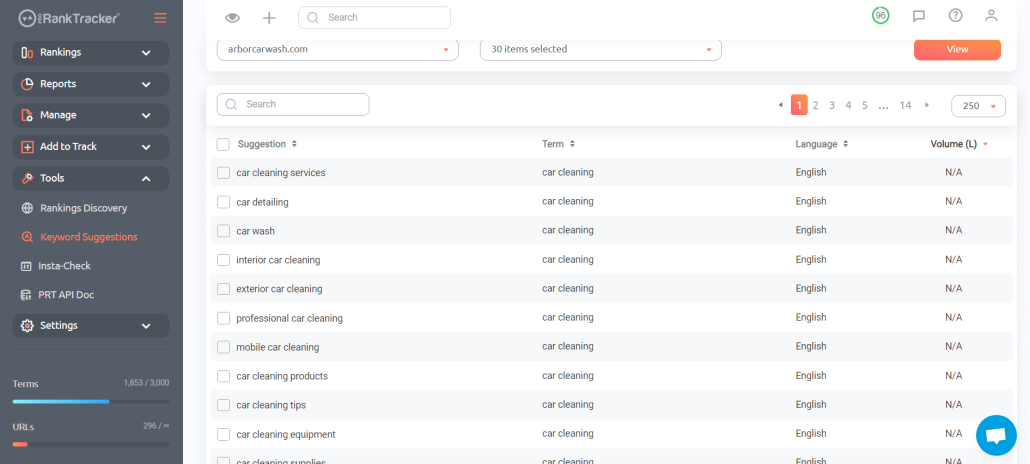
The Keyword Suggestions tool provides users with a list of high-value long-tail keywords based on their current keyword strategy.
In other words, ProRankTracker doesn’t simply guess which keywords might be beneficial–it considers your current strategy. It then suggests keywords with a reasonable search volume and competitiveness that will be good targets.
On the other hand, the Rankings Discovery tool reveals keywords already ranking for your URLs.
In other words, this tool analyzes your URLs to discover what terms they are already ranking for, which can be helpful for quickly boosting online visibility.
For example, you might find that you’re already ranking in the top 20 for a keyword you aren’t yet targeting. You could add that keyword to your list and spend some effort boosting it into the top 10 or 5.
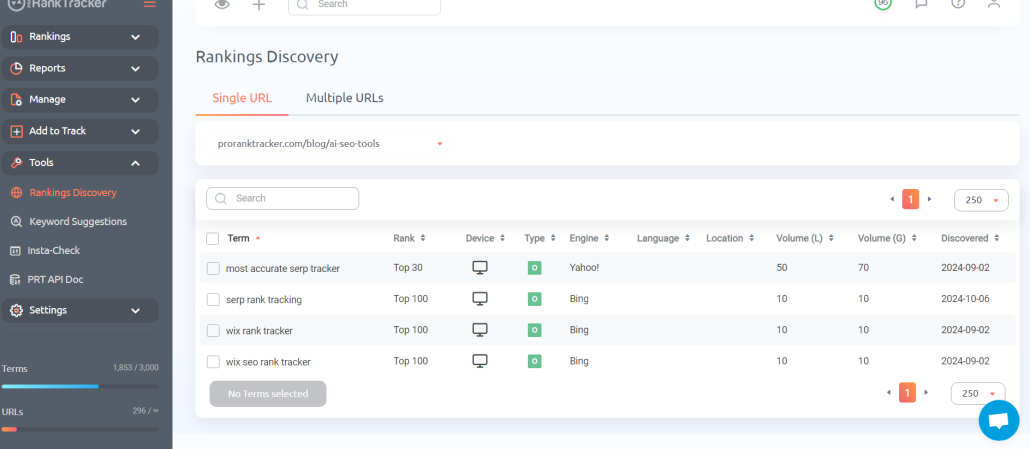
Then, you could head over to the Keyword Suggestions tool and have ProRankTracker generate a list of high-value keywords based on the new keyword you just added!
Combining these tools allows users to quickly generate lists of dozens of high-value keywords based on keywords that ALREADY generate traffic and revenue.
Use Ad-Hoc SERP Checks for Research
Insta-Check is a pay-as-you-go system that allows ProRankTracker users to simply buy credits and use them to check the SERPs for any keyword they’re interested in.
These SERP checks are quick and give you key data to act on WITHOUT needing to add new keywords/URLs to your long-term tracking list.
To generate an Insta-Check SERP report, go to the “Tools” section, select “Insta-Check,” and specify the keyword/URL you want to check.
There are multiple types of Insta-Check reports:
- Single position check (just tells you the current rank for the given URL/keyword/location combination)
- Top 10/20/etc. check (gives you the entire SERP up to the selected number for the given keyword/location combination)
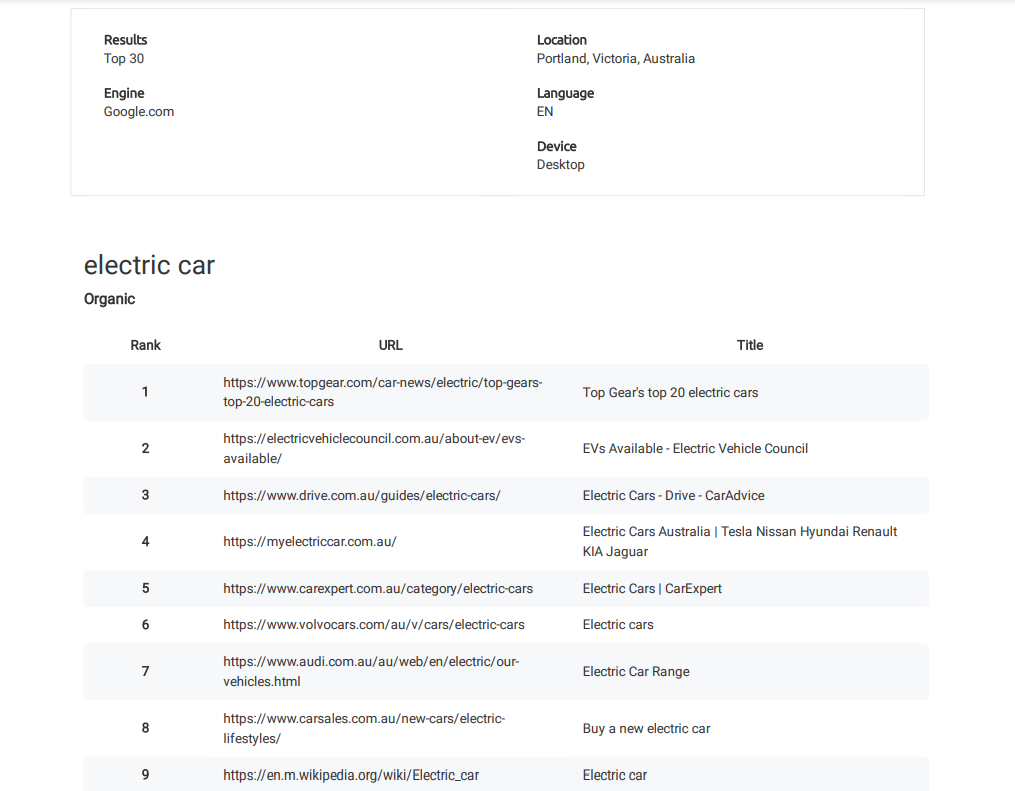
Using Insta-Check gives you quick data to help you further improve your keyword strategy, meaning you can increase the impact of your automated reporting strategy.
Additionally, if you use sub-accounts, you can choose to give sub-accounts access to Insta-Check reports or not. Keep in mind, however, that if you do give your clients access to Insta-Check that they will use your credits (which cost to replace!).
FAQ
What is white-label SEO?
White-label SEO is when you customize the look and content of reports so your clients receive reports with YOUR branding instead of the branding of the company that generated the reports for you.
What is the benefit of white-label SEO?
The main benefit of white-label SEO is that it makes your company look better than sending cheap-looking reports or reports with another company’s logo on them! Impressing your clients with high-quality, branded reports is a great way to improve client retention.
Is white labeling illegal?
NO! White-labeling is perfectly legal, and many companies (like ProRankTracker) design reporting tools explicitly to help their customers white-label their reports.
Conclusion
There is no way to impress your SEO clients more than high-quality, comprehensive reports. If you aren’t already using customizable reports to keep your white-label clients up-to-date, NOW is the time to start!
ProRankTracker gives you a ton of reporting options that will help you impress clients with your professionalism and accuracy.
We highly recommend trying ProRankTracker’s free trial to see how much the automated reporting features can help your white-label SEO business.
Happy reporting!

