

How to Manage Your Rankings with Project View (NEW)
Let me know if this sounds familiar.
You’re tracking dozens or hundreds of keywords and having trouble organizing your data. You’re spending more time looking for the specific URL you’re interested in than analyzing it.
We’ve been there.
ProRankTracker’s new Project View solves this problem by giving you easy access to well-organized data, allowing for better (and faster) analysis and optimization.
Whether managing multiple clients or focusing on specific campaigns, this feature will help you stay organized and make data-driven decisions that can improve your rankings online.
Let’s examine the features of Project View and consider how it can revolutionize your SEO workflow.
Features of Project View
ProRankTracker’s new Project View is designed to improve users’ management and organization of tracked URL/keyword combinations.
Instead of requiring users to track different parts of their ranking strategies in other tools, the Project View pulls everything into one spot to make it easy and efficient.
In other words, Project View allows for more structured and efficient tracking, making it easier to analyze and optimize SEO strategies.
Let’s spend a few minutes discussing everything the Project View offers and how it can revolutionize your rank-tracking workflow.
A new organizational entity
What’s the main difference between Project View and the other 5 views offered in PRT?
Project View introduces the concept of “Projects,” a new high-level organizational layer allowing users to group URLs and keywords under a single umbrella.
This feature is handy for managing campaigns or focusing on specific areas of interest. For example, an agency could establish a project for each client to track each website’s ranks easily.
Projects offer a higher organizational level than traditional URL or keyword tracking, providing a more straightforward structure and a better high-level view of your ranks.
Stats Box
The Stats Box is at the top of the Project View, where users can view a comprehensive snapshot of their data.
The Stats Box at the top shows where your URLs rank at a glance. PRT has this conveniently laid out in an easy-to-read table and a pie chart.
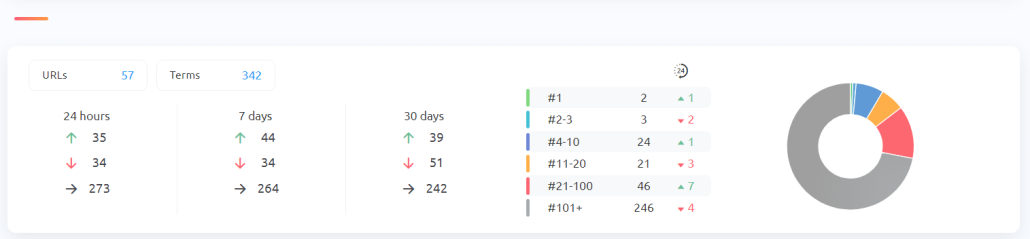
You can also quickly gauge how your ranks have changed in the last 24 hours, 7 days, or 30 days, making this view very practical for determining how any recent moves have impacted your ranks.
Rankings Overview
If you want to narrow your focus to a single URL/keyword combo at a time, scroll down to see your Rankings Overview for more in-depth data.
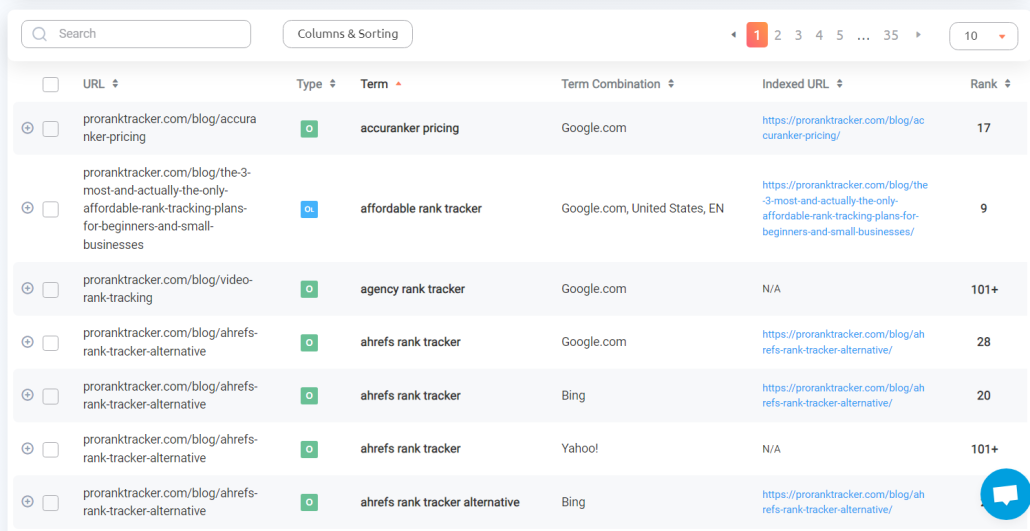
Daily Breakdown
The high-level perspective in the ranking overview section is incredibly detailed, but there will undoubtedly be times when you want to see how your ranks are changing day by day rather than week by week.
Scrolling down a bit more on the Project View brings you to the Daily Breakdown section. This section provides granular data in a graphical format on a day-by-day basis.
One look at the Daily Breakdown shows you exactly how your ranks have changed daily over the last month. You can adjust the date range to make your analysis more or less granular.
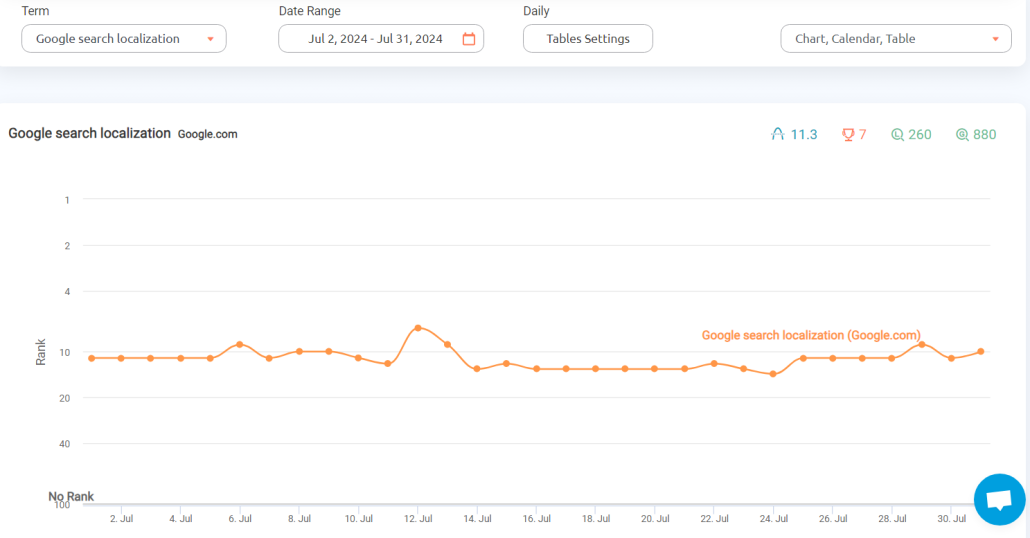
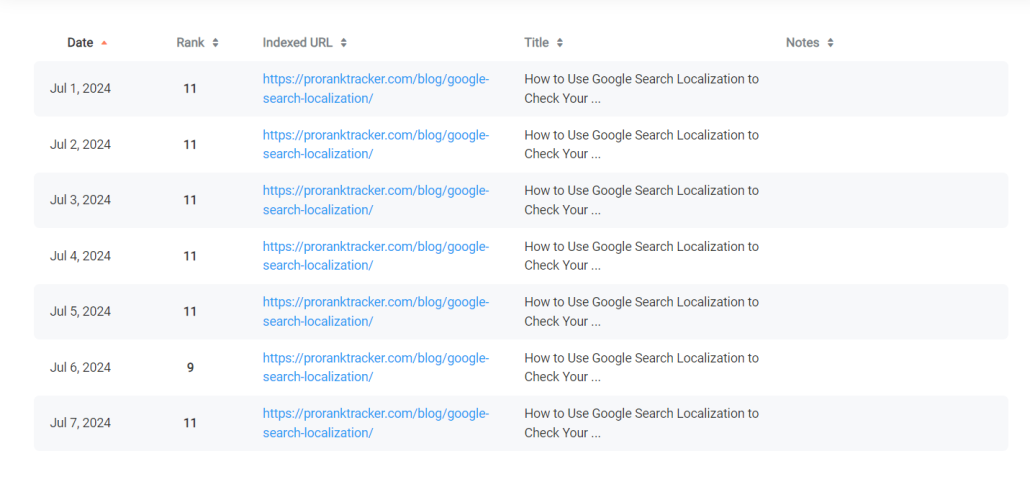
Users can see how their rankings fluctuate over time, which is crucial for understanding the impact of strategic changes. The same daily breakdown is also available in table format, allowing users to get into the nitty-gritty and make notes about any changes.
Heat Map
One of the new standout features in Project View is the heat map.
This visual tool displays historical ranking data on a calendar, making it easy to spot trends and changes at a glance. The heat map is color-coded, so you can instantly see any drops or jumps without hesitation.
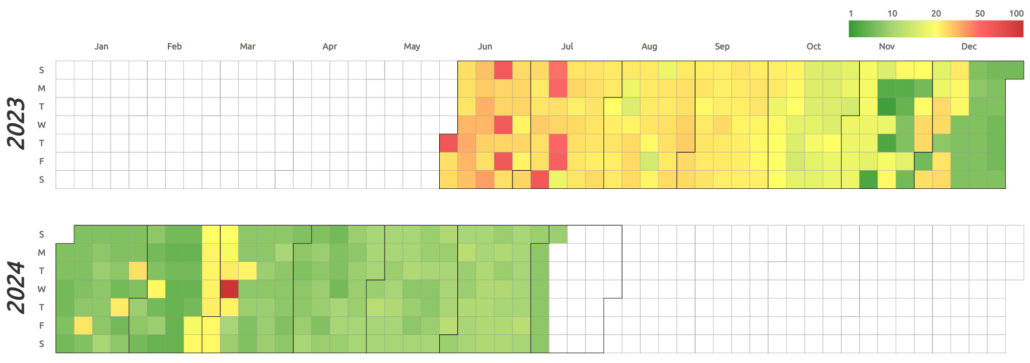
My favorite feature of the heatmap is the ability to see multiple years at a glance while still getting a day-by-day understanding of your ranks. This makes it incredibly easy to spot important details:
- Seasonal trends
- Hotspots caused by competition, Google algorithm changes, or some other issue
- How your strategies have affected your ranks
Notes
Project View makes notes much easier to use than before.
The top of the Project View page has a notes section, where you can take notes about your ranking strategy.
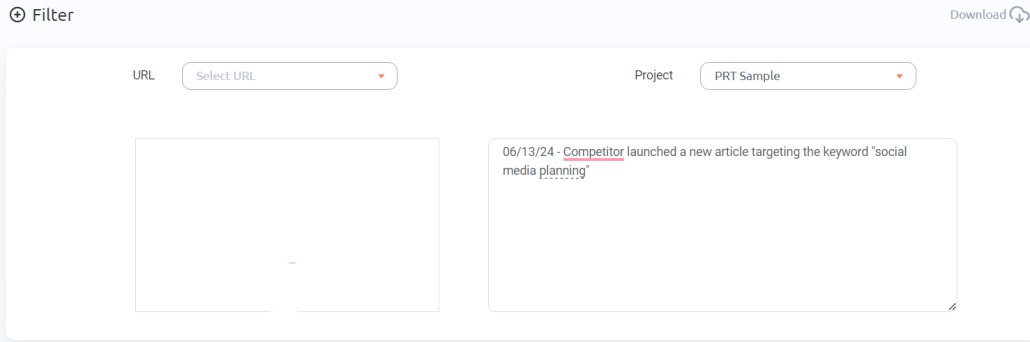
For example, you could make notes about the following:
- Recent strategic changes to help correlate ranking changes
- Competitor moves
- Google algorithm updates
- Client requests
Notes are invaluable for contextualizing your data and recording SEO activities and insights. When you’re reviewing your SEO data later, your notes can give you valuable insight into WHY things happened instead of leaving you to guess.
How to Use Project View
Project View has a TON to offer businesses in terms of keeping up with their ranks and their competitors.
But how do you use it?
ProRankTracker is known to be a super easy tool to use. There are just a few steps to follow to get your own Project View up and running.
Not a PRT user yet? I recommend signing up for a 14-day free trial so you can follow along with the steps as we walk through how to set up the Project View together.
Add URL/Keyword Combos
The Project View needs data to pull from. Otherwise, it won’t have anything to tell you.
ProRankTracker needs you to input the URLs and keywords you want to track to provide you with data.
The best place to do so is in the Add Wizard tool.
- Type in your URL and Keywords
- Select tracking options (location, language, device type, search engine, Google Business Profile data, etc.)
- Click “Save,” then repeat the process to continue adding the other URLs and keywords you’ll track.
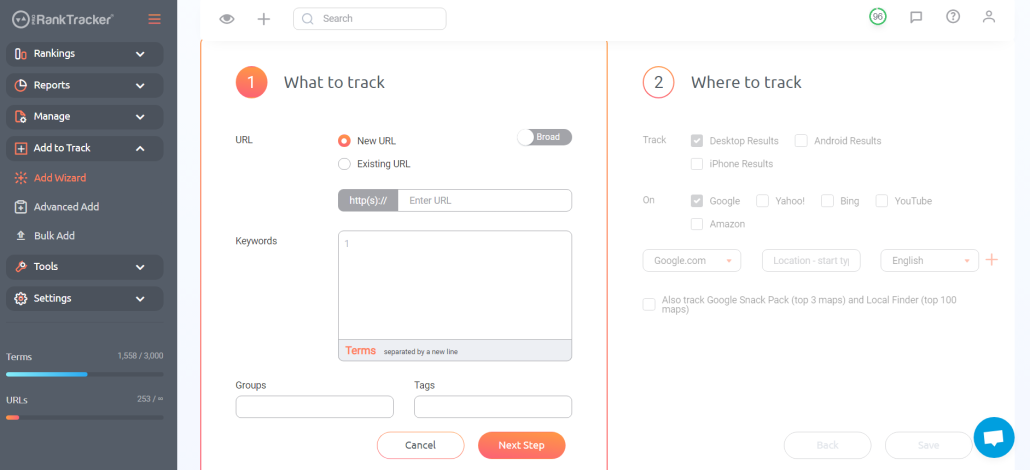
This initial step is crucial for ensuring that all relevant data is included in your Project View, providing a solid foundation for analysis.
Create a New Project
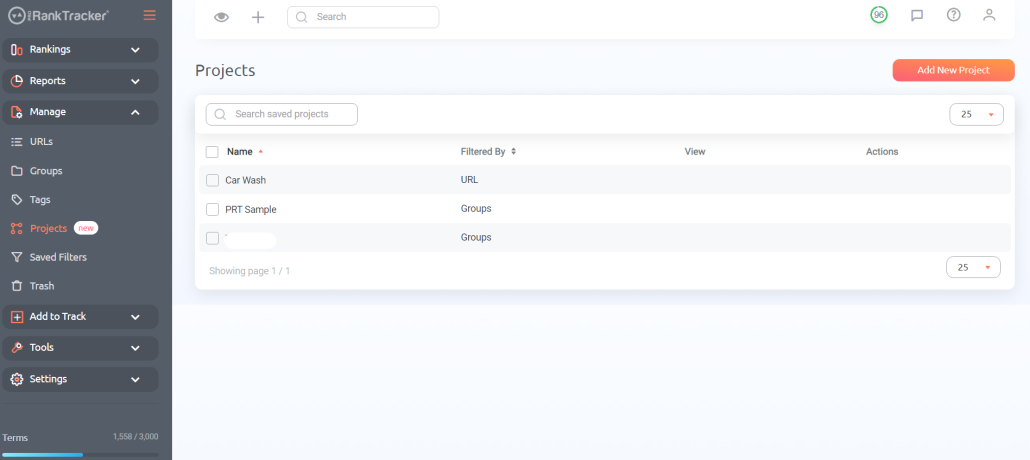
Once your URLs and keywords are set up, you can group them under a single umbrella by creating a new project.
This can quickly be done in 2 ways:
- Through the Project View interface
- In the Manage section under Projects
To create a project from the Project View, click “Select Project,” then click “+ Add new project.”
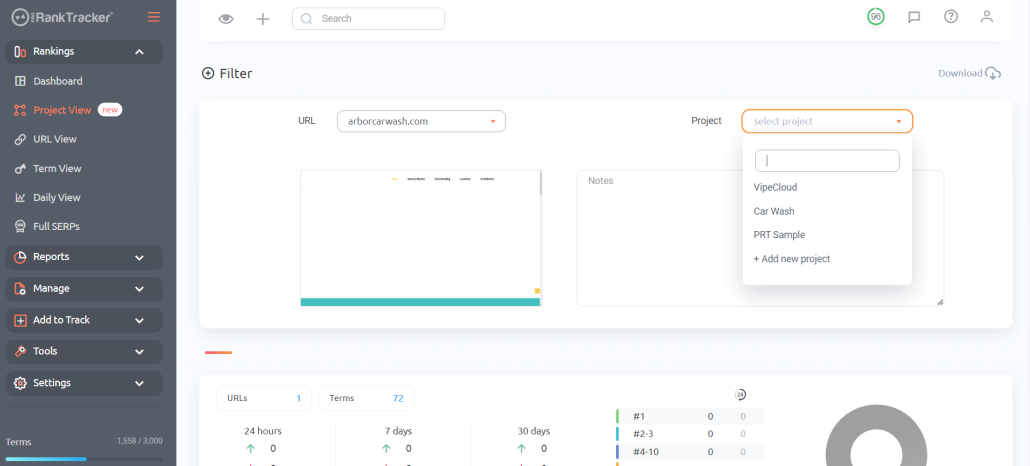
To create a project from the Manage tab, click “Projects,” then “Add New Project.”
Establish the Project’s Parameters
The next step is to define the project’s scope, including specifying which URLs/keywords will be included.
After clicking “Add New Project” in the step above, you’ll be taken to a menu that looks like the photo below:
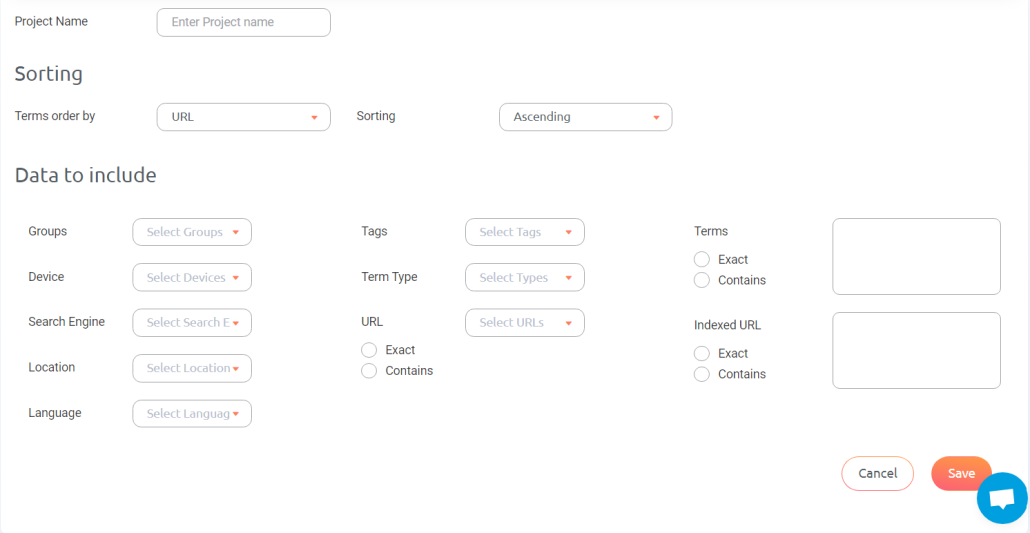
There are a few steps here:
- Name your project something that’s easily recognizable
- Select the sorting order
- Determine which data will be included. If you already have groups or tags set up, those can be an easy way to select URLs/Keywords. Otherwise, you can manually scroll through the URL menu and click any of your current tracked URLs.
- Specify the search engine, language, location, and device to ensure your project is as specific as possible.
Clear parameters help generate accurate and meaningful data reports, so take your time on this step for maximum impact!
Use the Project View Regularly
If you want to make the most of Project View, you MUST regularly use it!
By frequently reviewing and analyzing your data, you can stay on top of trends, adjust strategies as needed, and ensure that your SEO efforts yield the best possible results.
A mistake we often see people make is not tracking their ranks enough. Falling into this trap could mean you miss one of your most essential URLs, falling down the SERP. You could also miss:
- A Google penalty
- An algorithm change
- A move by your competitor
To avoid these issues, just use the Project View daily to ensure you know exactly what’s going on (and you can fix minor problems before they become big ones).
FAQs
What is an SEO project?
An SEO project is a set of URLs and keywords that are being worked on to improve a website’s content rankings on the SERPs. In PRT, a project is the highest-level organizational entity and allows you to group different URLs and keywords together for management quickly.
How to manage an SEO project?
To manage an SEO project, you must first determine your goal. Second, monitor your project EVERY DAY. Daily monitoring allows you to make small strategic adjustments and respond to competitor moves as necessary.
How do you stay organized when working on an SEO project?
Staying organized involves using the right tools. As nice as it would be to be able to keep all your SEO info in your head, it’s just not possible. Instead, find an SEO project management tool like PRT that will allow you to organize and track your project in a well-organized dashboard.
Ready to start tracking your ranks better than ever?
ProRankTracker’s Project View offers a powerful solution for businesses looking to organize and enhance their SEO efforts.
By grouping URLs and keywords into projects, you can gain more precise insights, make data-driven decisions, and stay ahead of the competition.
If you want to see for yourself, sign up for ProRankTracker’s free 14-day trial to try Project View (and other excellent features)!
Happy tracking!