
How to Set Up an Automated Rank Tracker in 9 Steps
Manual rank tracking is time-consuming and nearly impossible to scale.
If you think you’ll stay on top of your rankings by manually searching keywords every day, you’ll struggle to know when or how to adjust your SEO strategy.
Which means your SEO performance could be deteriorating without you even realizing it. And by the time you notice a ranking drop, it might be too late to recover lost traffic.
That’s why experienced SEO pros use an automated rank tracker to monitor search rankings in the background and provide daily updates. This allows you to:
- Save hours every week by automating tedious checks
- Eliminate human error and get accurate, daily data
- Track hundreds (or thousands) of keywords as your site grows
- Analyze key factors like location, device, SERP features, and historical trends
- Catch ranking drops early and take action before traffic slips
- Identify growth opportunities by knowing which keywords are driving traffic and which pages to optimize next
Below, I’ll show you how to set up ProRankTracker to do all of the above.
Feel free to skip to the section most relevant to you:
- Step #1: Sign Up for ProRankTracker
- Step #2: Add URL/Keyword Combos
- Step #3: Create Projects, Groups, and Tags for Clean Reporting
- Step #4: Use Rankings Views with Automated Organizational Features
- Step #5: Set Up Automatic Reports
- Step #6: Set Up Rankings Alerts
- Optional Step #7: Use the API to Integrate Other Tools
- Optional Step #8: Use Insta-Check for Quick SERP Checks
- Optional Step #9: Expand Your Keyword Strategy With ProRankTracker’s Keyword Tools
Step #1: Sign Up for ProRankTracker
First things first — you’ll need a ProRankTracker account to start automating your rank tracking. (Don’t worry. It’s free to get started.)
Why ProRankTracker? It’s the most accurate rank tracker on the market, has a wide range of reporting options (that you can white-label), and it’s one of the most affordable options on the market.
Sign up for a 14-day free trial here to follow along!
Step #2: Add URL/Keyword Combos
The first step in automating your rank tracking is to add your URL/keyword combinations to ProRankTracker. You can do this one by one in the Add Wizard tool, or you can use ProRankTracker’s bulk upload feature in the Advanced Add tool.
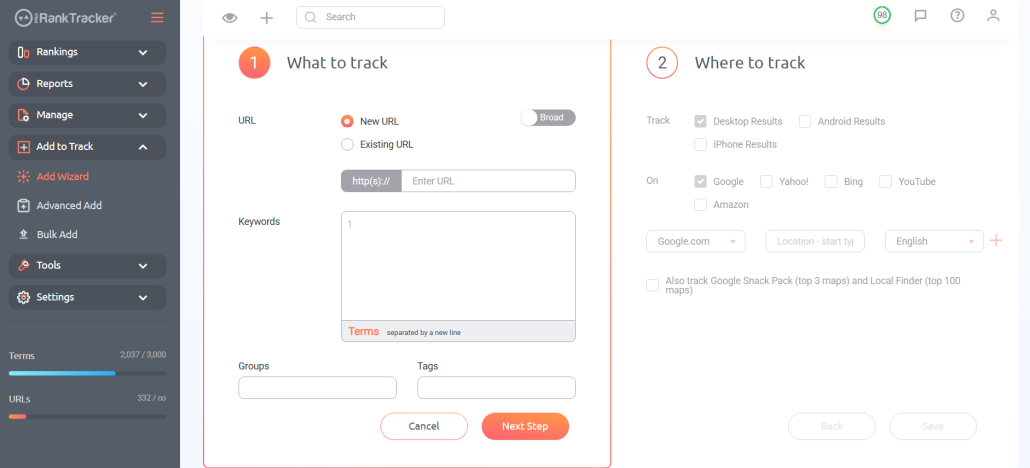
Make sure that you include the following:
- Group and tag to organize your URLs (more on this in the next section)
- Search engine
- Search device
- Language
- Location data
Including these other data points is one of the main differences between using a specialized tool like ProRankTracker and doing it yourself.
This data will enable you to see exactly where you rank for a specific location, device, language, and search engine (such as Google, Bing, YouTube, etc.).
Once you’ve added your URL and keywords, ProRankTracker will update your rank tracking data automatically daily.
Step #3: Create Projects, Groups, and Tags for Clean Reporting
Once your keywords and URLs are added, it’s time to organize them. This step makes your reports easier to read, and your Rankings Views easier to navigate.
This might not be that important when you’re tracking 5-10 URLs, but when you’re tracking hundreds (or thousands) of keywords across multiple clients or sites, things can get messy fast.
By using Projects, Groups, and Tags, you can slice your data any way you want — and build specific reports that impress clients.
Here’s what each is for (in order of lowest to highest hierarchy):
- Tags = Labels for specific keywords
- Groups = Collections of URLs
- Projects = Top-level buckets of Groups
Once you create Tags, Groups, and Projects, you can automatically organize your keywords and URLs when you add them (or manage them after).
Pro tip: Create different Projects for each of your clients or websites, then further organize your pages with Groups based on common characteristics or campaigns. Tags are helpful for more granular organization (ex: labeling keywords based on importance).
Step #4: Use Rankings Views with Automated Organizational Features
Now that your keywords are tracked and organized, it’s time to work smarter in your Rankings Views.
ProRankTracker gives you several simple tools that help you find data fast — without re-sorting or rebuilding views every time:
1) Column Sorting — By selecting “Columns & Sorting” in a Rankings View, you can order what data you want to make visible and in what order.
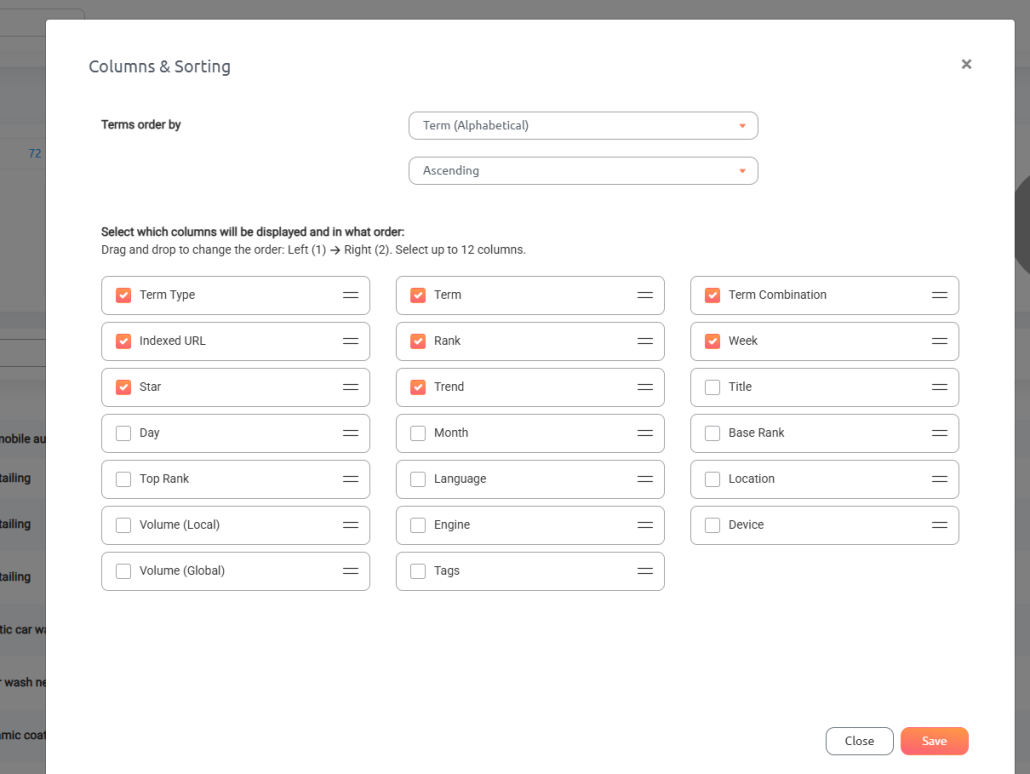
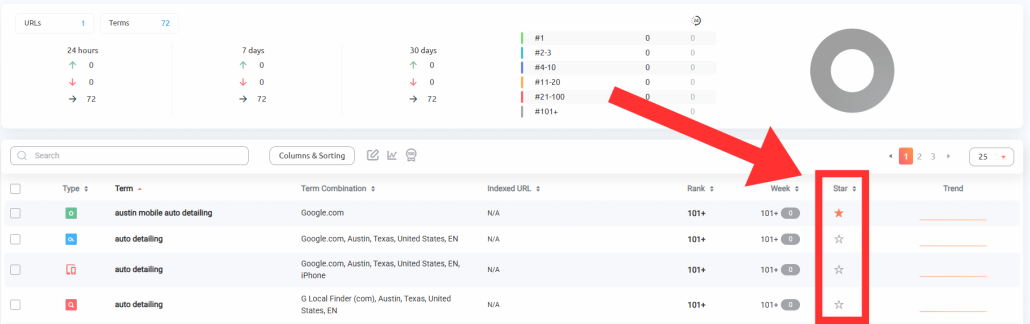
2) Star Feature (Favorites Bar) — When viewing any Rankings View, click the star icon to favorite a specific term you’re tracking. This allows you to surface your favorite terms to the top of a view by clicking on the star column.
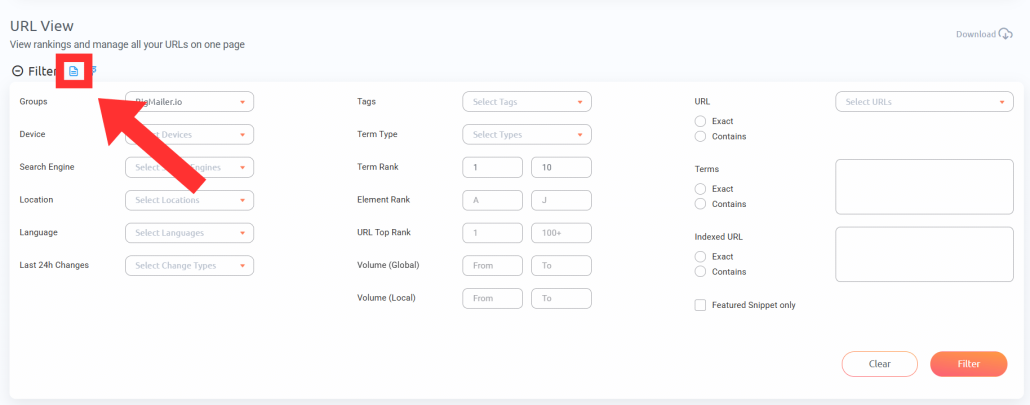
3) Saved Filters — Instead of manually filtering your data each time, you can save filters for fast reuse in the future.
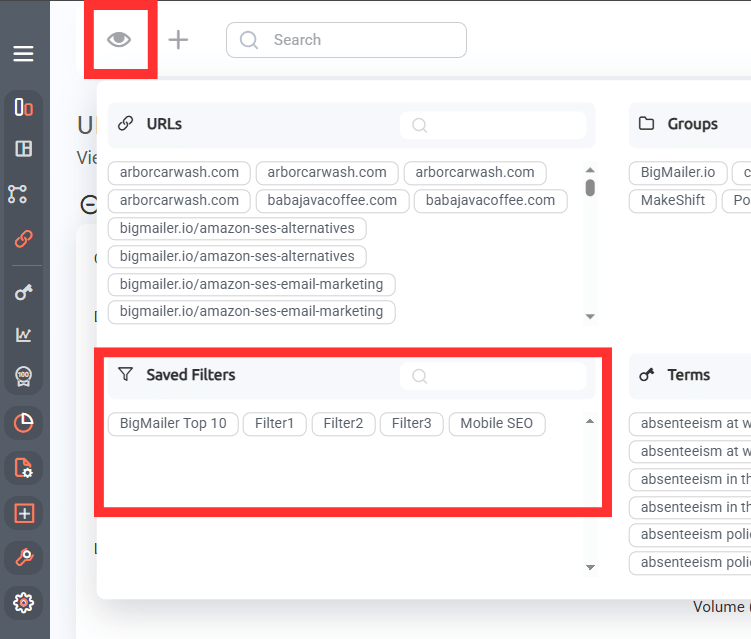
Then, you can access saved filters by clicking the eye icon on the top left of the dashboard.
Step #5: Set Up Automatic Reports
ProRankTracker lets you set up 20+ custom automated reports — so your clients and team always have the insights they need without even having to log in to the app.
Once you’ve chosen a report type, you can customize which keywords, URLs, groups, or tags to include. Then set how often it should send — daily, weekly, monthly, or on-demand. You can deliver reports in multiple formats: email content, PDF, XLSX, or CSV — white-labeled with your branding.
However, my favorite report to send to clients is the Shared Report, which is a live URL containing ranking data that you can easily share with clients or team members using a simple link.
Here’s a rundown of the main types of reports you can generate:
- Overview Reports give you a snapshot of current rankings by URL and keywords.
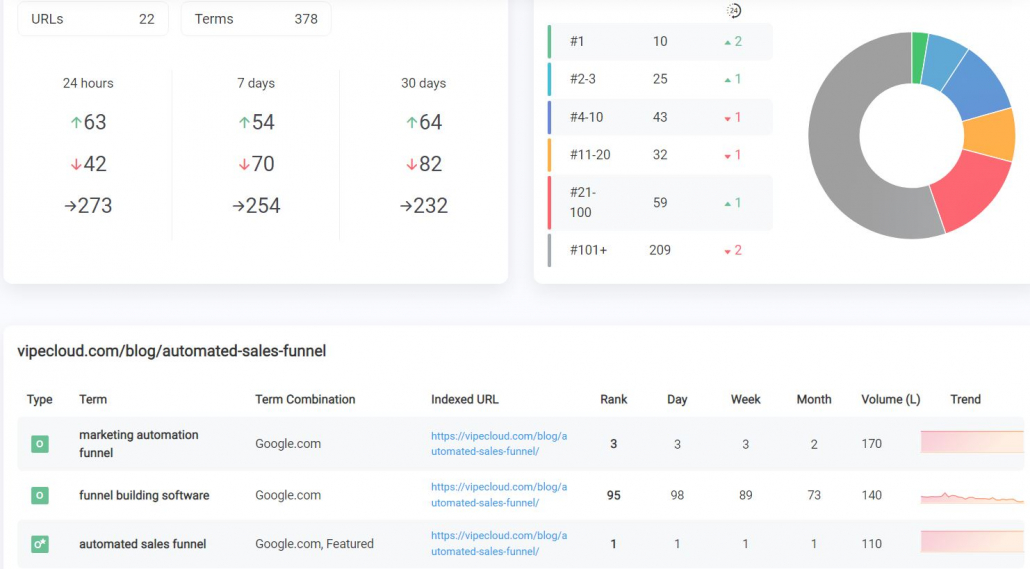
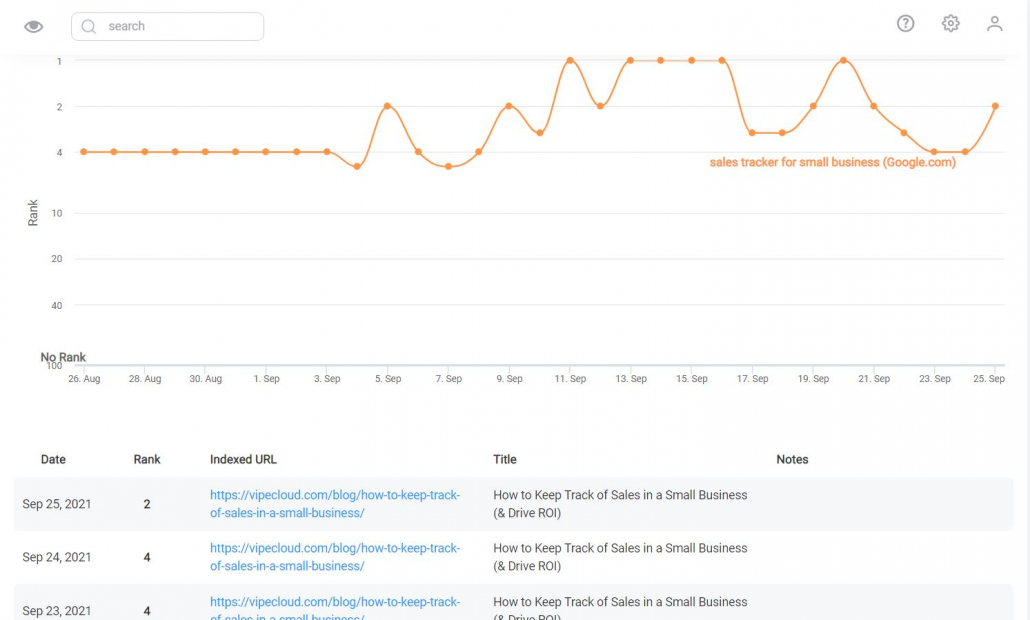
- Historical Progress Reports show ranking data broken down daily, weekly, or monthly so you can spot patterns or prove long-term SEO gains.
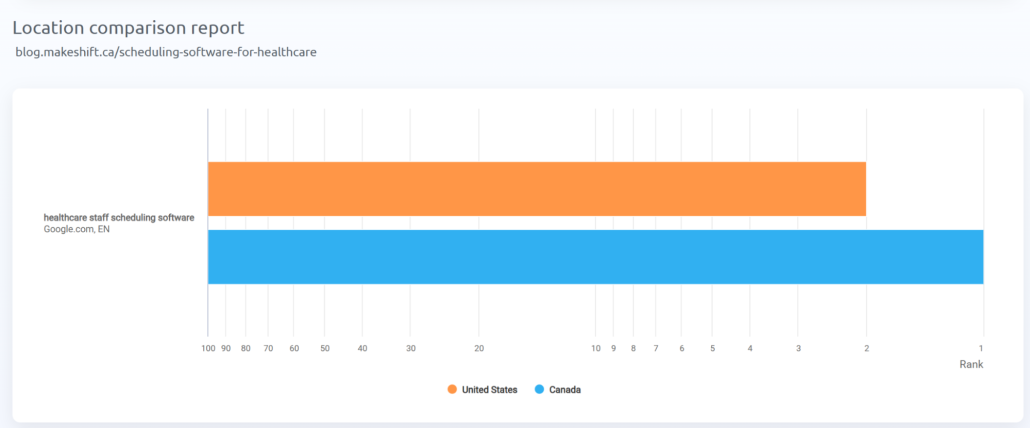
- Ranking Comparison Reports let you compare the same keyword across multiple URLs, devices, locations, or search engines.
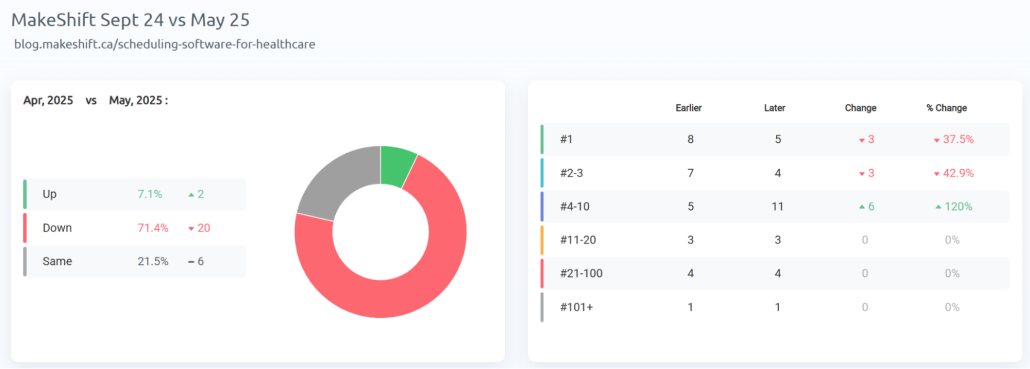
- Benchmark Reports compare rankings between two dates, weeks or months — ideal for showing progress after campaigns or audits.
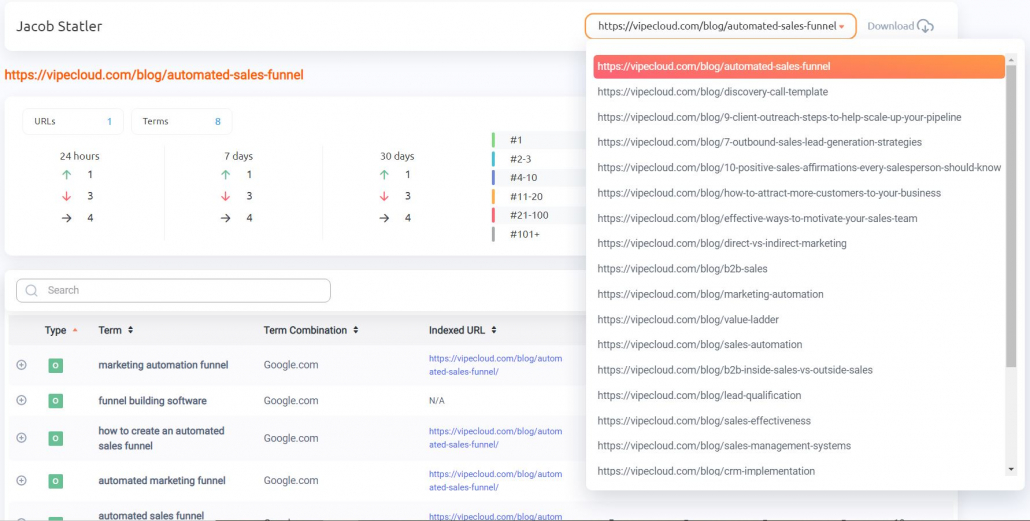
- Rankings Sections Reports export what you see in PRT’s dashboard views (Project View, URL View, Term View, Daily View, and Full SERPs) as scheduled reports.
- Notifications send automatic email alerts when ranks drop, jump, or hit specific milestones.
- Shared Reports create live, password-protected URLs your clients or teammates can access anytime for real-time reporting.
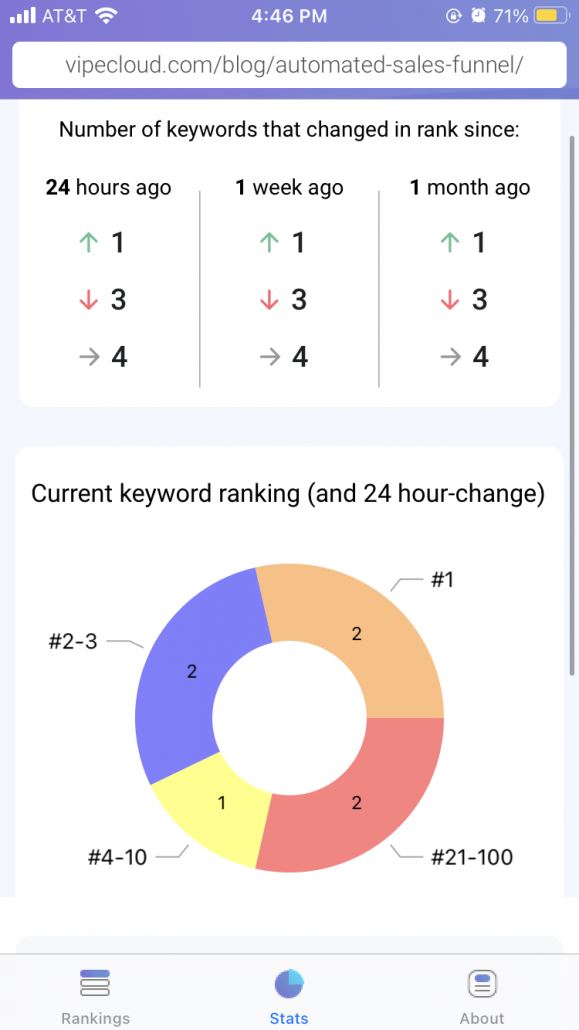
- MyRanks Mobile App gives your clients access to their rankings via a
white-labeled app with your logo and branding.
With templates, you can customize almost any part of your reports, including:
- Colors
- Text styles
- Header
- Footer
- Cover letter
You can also push data to Looker Studio to create custom dashboards that sync with your other Google Analytics, Google Search Console, and other marketing data.
Step #6: Set Up Rankings Alerts
Daily updates are great — but some SEO shifts need immediate action. With ranking alerts, ProRankTracker can notify you the second a keyword hits a trigger — so you can respond fast and stay ahead of competitors.
Just open the Reports Center and select a notification you want to set up. Then, fill out the details that you want to get notifications on.
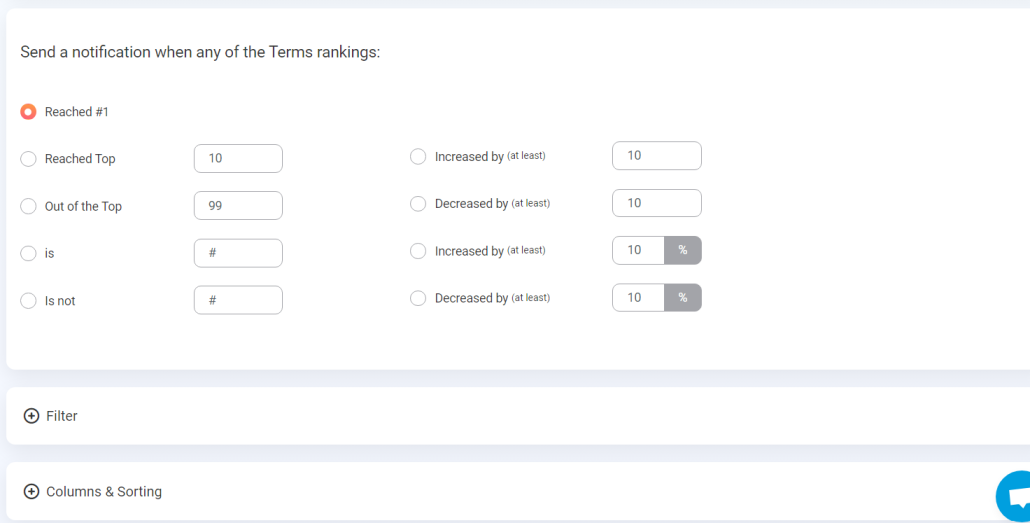
For example, you might set up notifications for:
- Your ranks dropping or increasing by a certain number or percentage
- One of your URL/keyword combos reaching a certain rank
- One of your tracked terms falling off the first page of Google
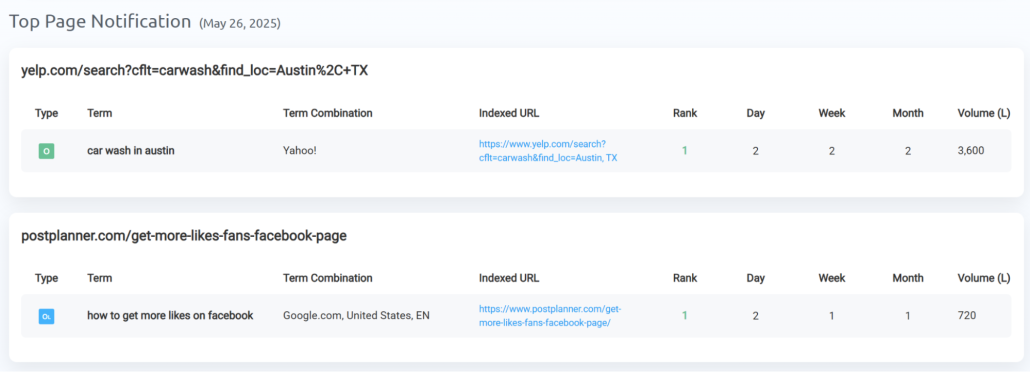
Automated notifications save you time and ensure you stay on top of critical events. They can even help you avoid disasters by alerting you before a problem goes from bad to worse.
You can even set up alerts for your competitors, allowing you to monitor their ranking movements.
Pro tip: Set up drop alerts for high-value pages — this catches slips early before they snowball into lost traffic and sales.
Optional Step #7: Use the API to Integrate Other Tools
Want to take your automation to the next level?
ProRankTracker’s API gives you full programmatic access to your ranking data, so you can connect PRT with your entire marketing stack.
This feature enables you to automate even more tasks, such as:
- Exporting your ranking data to a spreadsheet
- Integrating ProRankTracker with your website’s analytics software
- Creating data visualizations with a tool like Google Looker Studio
Your imagination is the limit (and coding skills)!
Optional Step #8: Use Insta-Check for Quick SERP Checks
Sometimes, you need to check a website’s current ranking right now — without needing to track it long-term.
That’s exactly what the pay-as-you-go Insta-Check tool is for.
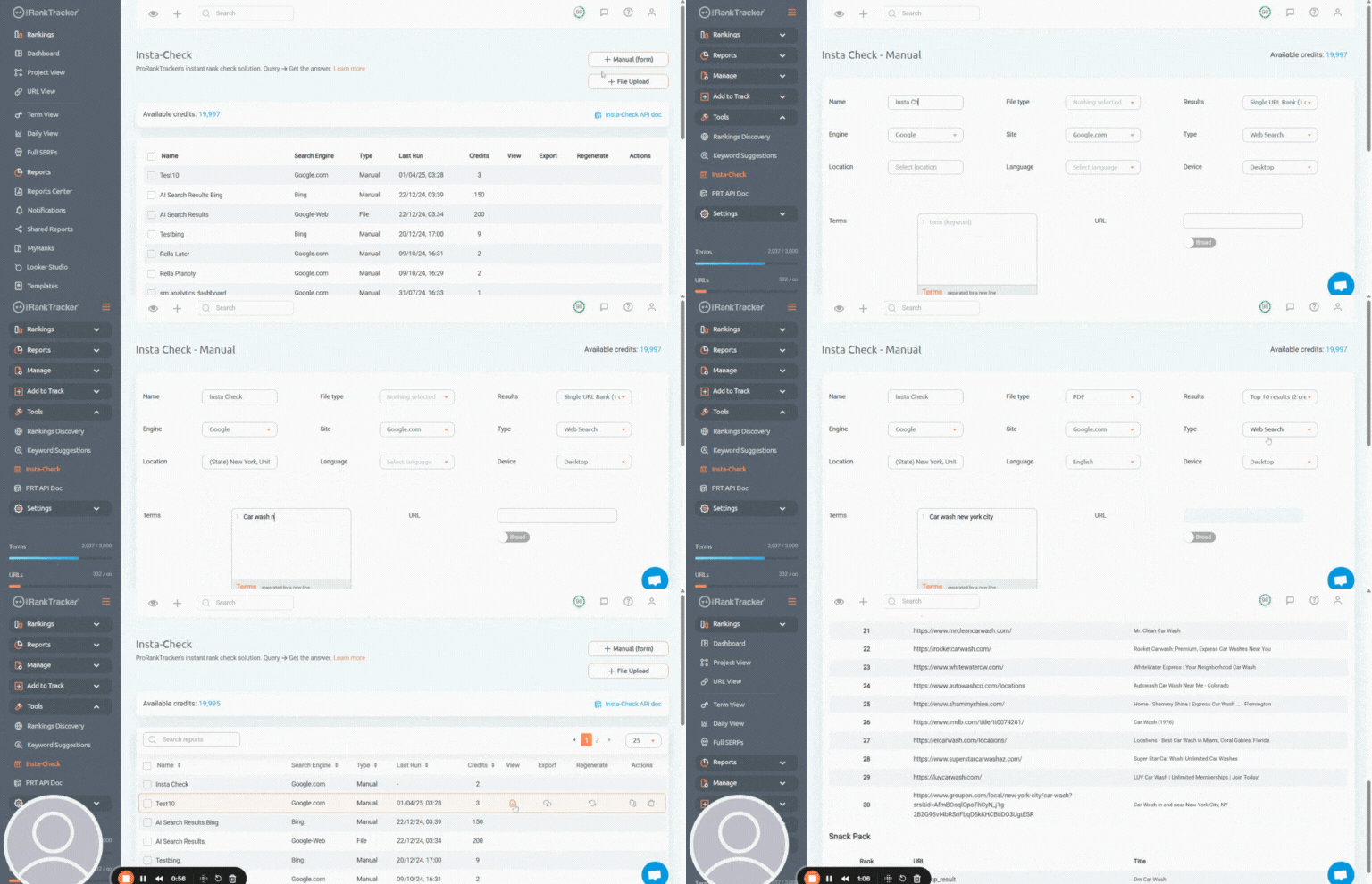
How to use it:
- Go to the Insta-Check tool (no ProRankTracker plan required).
- Enter the URL and keyword(s) you want to check.
- Choose search engine, device, and location.
- Run the check — you’ll see fresh live results instantly.
Pro tip: I like to use Insta-Check for auditing a new website’s current rankings. This is perfect if you’re an SEO consultant or agency that gives prospects an SEO audit in the sales process.
Optional Step #9: Expand Your Keyword Strategy With ProRankTracker’s Keyword Tools
Searching for keywords is HARD. It’s so hard that very few small businesses do a very good job of determining what keywords are worth tracking.
ProRankTracker offers several keyword tools that can help you expand your keyword strategy.
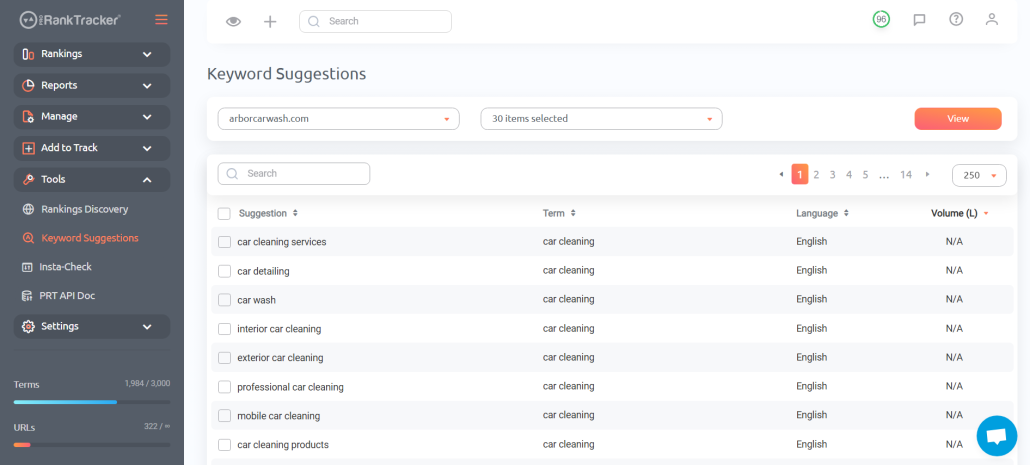
The Keyword Suggestions tool allows you to find new keywords to target. It generates a list of brand-new, long-tail keywords based on the list you or your competitor are currently tracking.
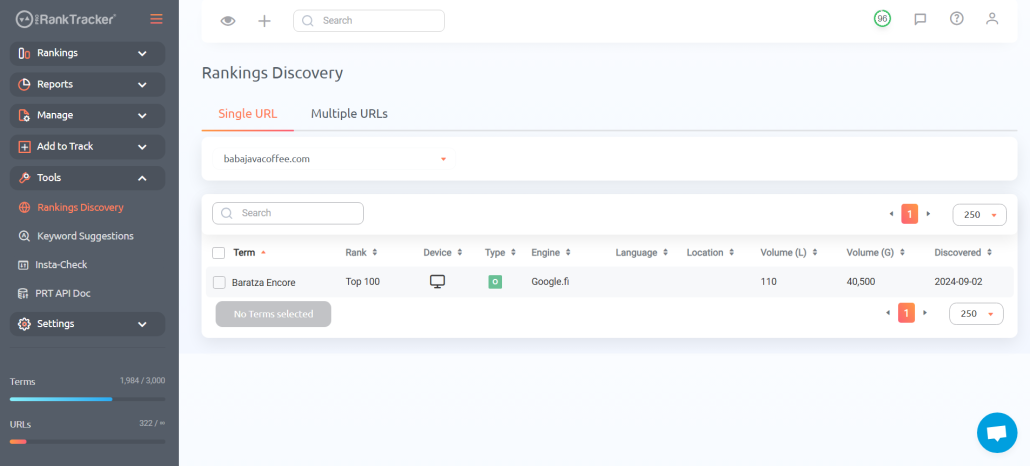
The Rankings Discovery tool shows you any keywords that you AREN’T currently tracking but rank for nonetheless. You can use this tool to find gaps in your strategy or identify the keywords your competitors are targeting.
Ready to Start Tracking Your Rankings Automatically?
An automated rank tracker can take your SEO strategy to the next level. It saves you time, increases your accuracy, tracks more ranks, provides you with more data, and helps you avoid disasters.
If you aren’t already using ProRankTracker, sign up for a 14-day free trial today.